 BraveCL
How to inspect a missing checksum file on Mac
Import a checksum list, find a missing file in the release scope, and inspect its expected SHA-256 digest before running a full check.
- What you'll achieve
- You can locate the missing file in the release list and open its inspector to see the expected digest and why it is missing from the selected release folder.
- What you need
- Checksum File Studio for Mac (version 3.0).
- A GNU-format checksum list for a release and access to the corresponding release folder. Keep the list and folder available throughout the steps.
- A list that names at least one file absent from the selected folder, so a Missing result can be inspected.

Checksum File Studio can compare the entries in a supplied checksum list with a release folder. This guide shows how to prepare that scope, identify a file marked Missing, and view its expected digest and source-list reference. It covers the pre-run preview, not a completed checksum verification.
1.Open Checksum File Studio
Open Checksum File Studio and choose Check Supplied List to start a check from an existing checksum list. The workspace begins empty until you select the list and its release folder.

Checksum File Studio empty workspace with Check Supplied List option 2.Load the checksum list and release folder
Choose the supplied checksum list and its matching release folder, then commit the scope. Review the table of paths and the status counts. In this example, 25 rows are listed with three exceptions: one Missing file and two Unlisted files. The other rows remain Pending.

Supplied Checksum List for Riverside Fair Files shows 25 rows and three exceptions 3.Select a file marked Missing
Find the row for Poster-Print.pdf, which is marked Missing, and select it. Your selected row is highlighted so you can inspect its individual details.
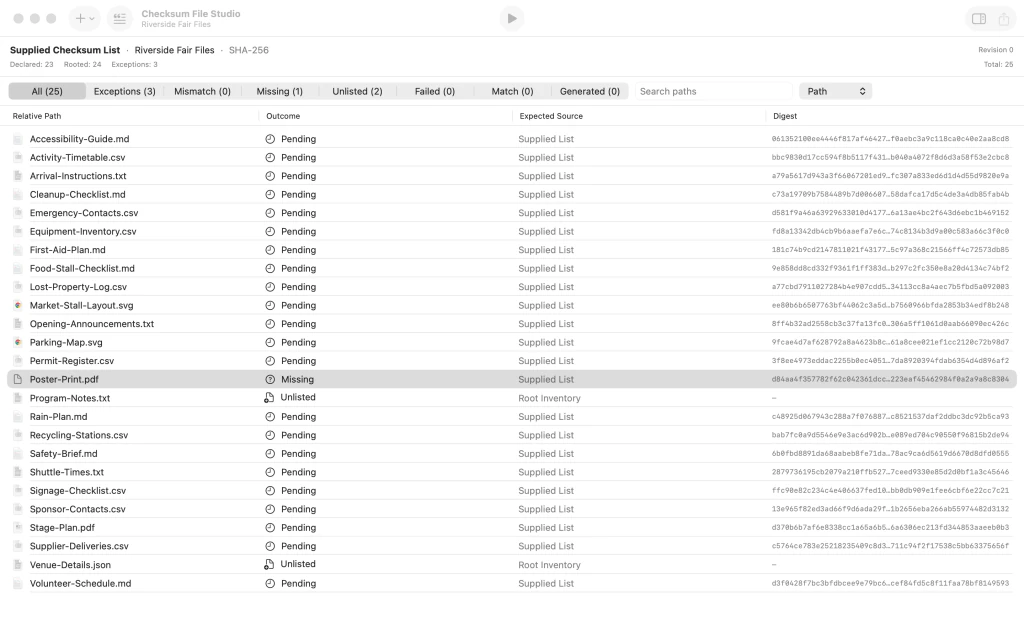
Poster-Print.pdf selected in the release table with Missing outcome 4.Open the missing-file inspector
Open the Sidebar right inspector. Confirm Outcome is Missing, review Expectation to see its expected digest from the Supplied List, and check Observed for the absence of a current checksum observation. This is a scope preview, not a completed verification run.

Inspector for missing Poster-Print.pdf showing its expected digest and no current observation


After the last step
You have not verified the remaining files until you run the check.
Tips
Review the Missing and Unlisted counts before running a verification check; they describe the supplied-list scope.
Choose a file marked Missing to inspect its expected digest; the digest comes from the supplied list.
If the release folder changes, prepare the scope again before trusting its counts.
Watch outThis preview is not a completed hash verification. Pending rows have not been checked against computed digests.
Watch outA missing file cannot be confirmed as matching its expected hash until the file is present and verification runs.
Watch outA matching digest is not proof of publisher identity or package safety.

