Every macOS and iOS app submits to the App Store with a complete icon set — a single image file won't do it. Apple requires icons at multiple resolutions for every context where your app appears: the App Store listing, the home screen, Spotlight, Settings, Notifications, and more. The Assets Xcode: App Icon Set generator handles this entire process from a single source image.
Why a single high-res image is never enough
Xcode expects an AppIcon.appiconset containing between 10 and 30 separate files depending on whether you're targeting macOS, iOS, or both. The resolutions range from 16×16 for the Mac Dock at 1x to 1024×1024 for the App Store artwork. If any size is missing, Xcode shows a warning; if the required sizes are absent, the build fails on submission.
Before asset catalog generators existed, developers either manually resized every file or ran custom scripts. Both approaches were error-prone and tedious. Assets Xcode automates all of it.
The correct workflow
Start with a 1024×1024 PNG. This is the highest resolution Apple requires and the canonical source for all downscaled versions. Don't use a JPG — the alpha channel matters for some icon sizes. Make sure your design is finalized before generating the set; if you change the icon later, re-generate everything from the new source.
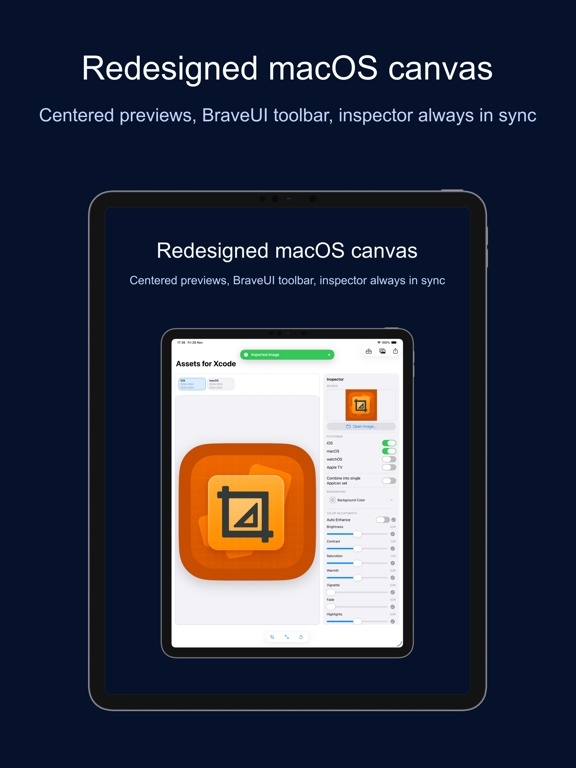
- Open Assets Xcode: App Icon Set and drag your 1024×1024 PNG onto the drop zone
- Select your target platform — macOS, iOS, or both
- Choose the export folder — typically your project's
Assets.xcassetsdirectory - Click Generate. All required sizes are created instantly with correct filenames

The Contents.json file
Beyond the image files, a proper AppIcon.appiconset requires a Contents.json manifest that maps each image file to its role and resolution. Assets Xcode generates this file automatically alongside the images. Without it, Xcode won't recognize the icon set as valid even if all image files are there.

Common pitfalls to avoid
Non-square source image: Apple requires app icons to be perfectly square. If your design has a slight canvas offset, the generated icons will be wrong. Verify the source is exactly 1024×1024px before importing.
Low-res source: Generating down from a 256px source produces blurry larger sizes. Always start from 1024×1024 minimum.
Wrong build target: In Xcode, the asset catalog must be in the target's "Copy Bundle Resources" build phase. Verify this after adding the icon set.
Summary
Assets Xcode: App Icon Set is a $4.99 one-time purchase on the Mac App Store, requires macOS 13 Ventura. It eliminates a repetitive, error-prone step from every iOS and macOS project. Run it once per design change and your asset catalog is complete.