Storage fills up quietly. It doesn't happen all at once — it's the accumulation of years of downloads, video exports, duplicate backups, cache folders, and project files from work you finished in 2019. By the time your Mac warns you that you're low on space, the cause is usually a handful of directories you haven't looked at in months. File Finder: Disk Space Cleaner makes those directories visible.
How storage actually fills up on a Mac
The top culprits, in order of likelihood: old Xcode simulators and developer caches (can easily exceed 30GB), video footage and exports (Final Cut caches, DaVinci Resolve media), unused virtual machine images, old iOS backups in iTunes/Finder, duplicate files from multiple import sessions, and large download folders that were never cleaned up. These don't show up obviously in Finder because they're buried in ~/Library, application support folders, and hidden system directories.
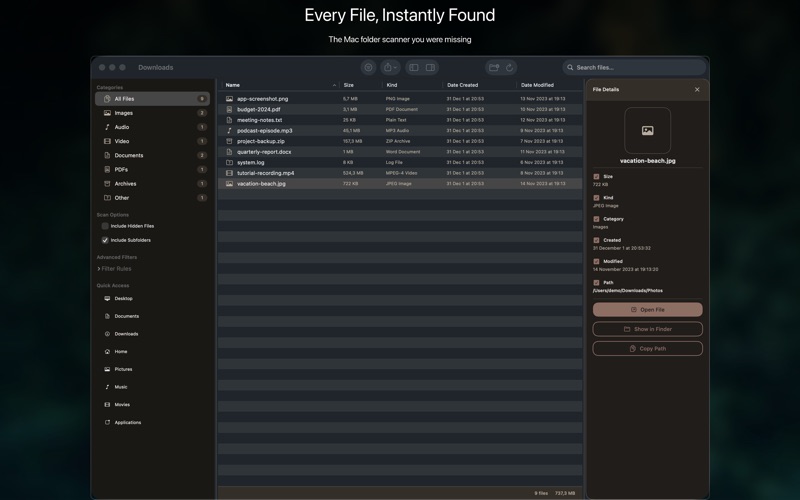
Finding the large files quickly
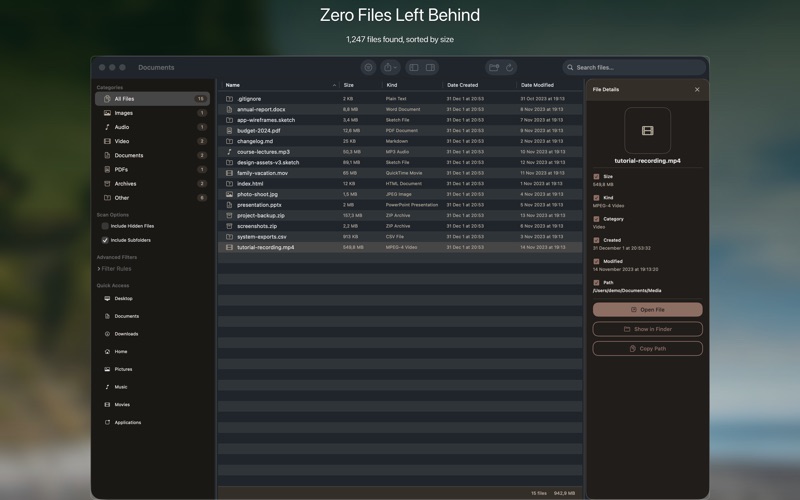
File Finder scans your drive and shows files sorted by size. The 50 largest files on most Macs account for the vast majority of non-system storage. A 40GB virtual machine image, a 15GB video project, a 10GB Xcode derived data folder — these dwarf thousands of typical documents. Scan, sort by size descending, decide what to delete.
The workflow is: scan → identify → verify → delete. Don't delete anything you haven't looked at first. The app shows you the full path so you can open the folder in Finder before deciding.
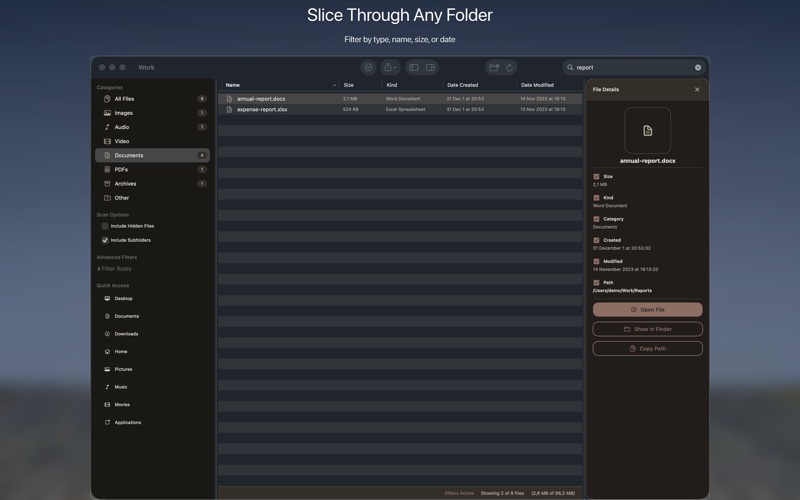
Finding duplicate files
Duplicates happen in specific patterns: you downloaded the same installer twice, you imported a photo folder and it already existed, you copied a video project between drives and forgot to delete the original, your backup included a folder you'd already backed up elsewhere. File Finder's duplicate detection scans for files with identical content (not just identical names) and groups them so you can review and delete the extras.
The key discipline with duplicates: always check the path before deleting. A "duplicate" might be an intentional backup copy in a different location. The app shows you both locations — make sure you're keeping the one you actually want.
What the app can and can't access
File Finder can scan any folder you grant it access to, including your home directory, external drives, and connected volumes. It can't scan system-protected areas (System volume, sealed system extensions) — those are protected by macOS and no third-party app can access them without disabling SIP. This isn't a limitation of the app; it's macOS working as designed. The space wasters you can actually act on are almost always in user-accessible locations anyway.
Privacy and security
All scanning is local. No file list, path, or filename is transmitted anywhere. File Finder: Disk Space Cleaner is $9.99 one-time on the Mac App Store, requires macOS 13 Ventura.