Every photo format exists because a different tradeoff was worth making at a specific point in the history of digital imaging. JPEG was designed for photographic compression in 1992. PNG was created in 1996. HEIC emerged from video codec research and became Apple's default iPhone format in 2017. Understanding what each format optimizes for is the most direct path to making correct format decisions for your workflow.
JPEG: the universal tradeoff
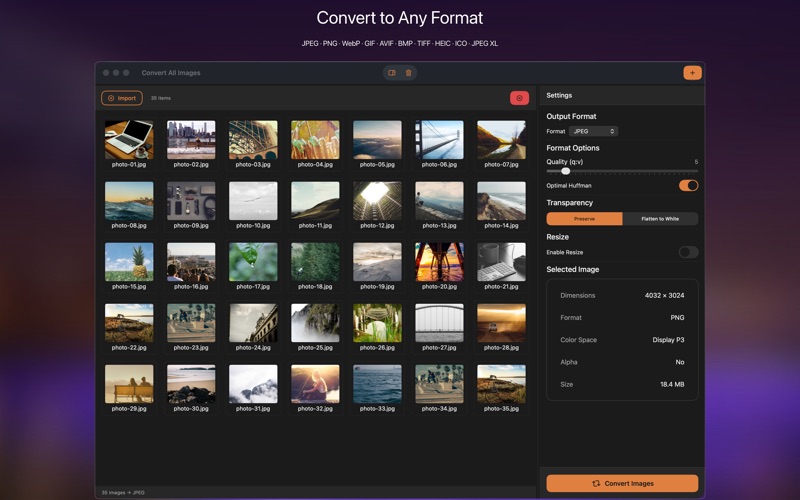
JPEG uses lossy compression — it permanently discards information to achieve small file sizes. For photographs with complex continuous tones (skin, sky, foliage), the compression artifacts are nearly invisible at quality settings of 80–95%. JPEG is right for: sharing on social media, embedding in websites, email attachments, and any context where the recipient needs broad compatibility. The key limitation: every time you re-save a JPEG, you incur another round of lossy compression. Keep originals in a lossless format.
PNG: when quality is non-negotiable
PNG uses lossless compression — every pixel is preserved exactly. File sizes are larger than JPEG (2–5x for photographs), but that's the cost of perfect fidelity. Use PNG for: app icons, logos, screenshots, UI graphics, and any image you'll continue editing. PNG also supports full alpha channel transparency, which JPEG doesn't. For photographs you're archiving or editing further, PNG (or TIFF) prevents quality loss from repeated saves.
HEIC: Apple's space-efficient format
HEIC stores iPhone photos at half the file size of JPEG with equivalent or better quality. It's the right format while images live on your iPhone. The problem appears when you move them elsewhere: Windows (without codec packs), many web services, and older software can't handle HEIC natively. Converting HEIC to JPEG is usually the right move for external sharing.

WebP: the web-native format
Google developed WebP to replace JPEG and PNG on the web. WebP files are 25–35% smaller than equivalent-quality JPEGs and support transparency like PNG. Modern browsers support it universally. WebP is primarily an export format for web delivery — cameras and photo editors don't output it natively. Photo Converter Studio can convert any source format to WebP for web optimization.
TIFF: professional archiving
TIFF is the standard archival format for professional photography and print production. Like PNG it's lossless, but it also supports multi-page documents, LAB color spaces, embedded paths, and 16-bit depth — features that matter for print workflows and color-critical work. File sizes are large, but for archiving originals you'll never regret keeping TIFFs.
When to convert and how
The most common conversions: HEIC → JPEG for cross-platform sharing. PNG → JPEG for web images where transparency isn't needed. Any format → WebP for web publishing. Any format → TIFF for professional archiving.
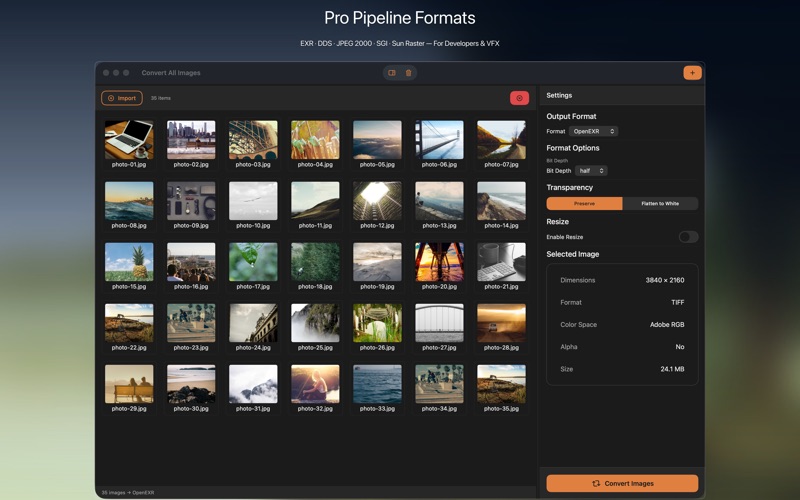
Photo Converter Studio handles all of these with batch processing — convert an entire folder in one step, with output size previews and quality controls per format. It's $7.99 one-time on the Mac App Store, requires macOS 13 Ventura.