You just got home from a shoot. Your memory card has 300 files named IMG_3241.jpg through IMG_3541.jpg. You need to find the 40 best shots, edit them, and deliver to the client — but first you need to organize this chaos into something searchable. Batch renaming is the unsexy but essential step that separates a professional photo archive from a pile of files.
The photographer's rename workflow
The goal is to go from IMG_XXXX.jpg to a name that includes the date, subject, and sequence number — like 2025-01-15_Paris_001.jpg. In File Renamer Pro, this takes about 20 seconds to set up and then runs on all 300 files at once.
Here's how the rule combination works:
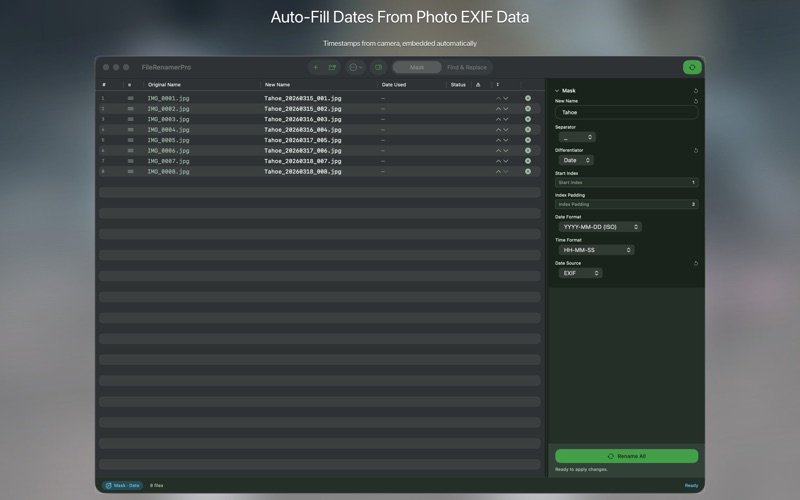
- Add a Date rule set to "file creation date" → format YYYY-MM-DD. This pulls the date the photo was taken from the file's metadata (EXIF), not the date you copied it from the card.
- Add a Text rule to insert a separator and the subject: "_Paris_"
- Add a Sequential Number rule: 3-digit padding, starting at 001
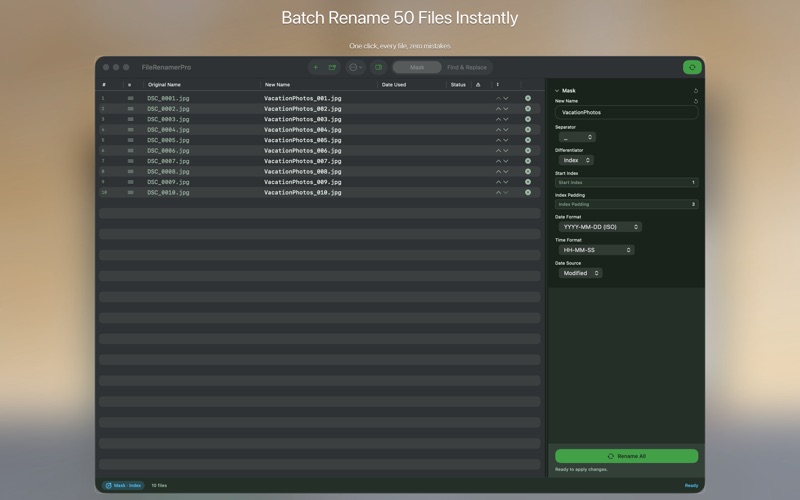
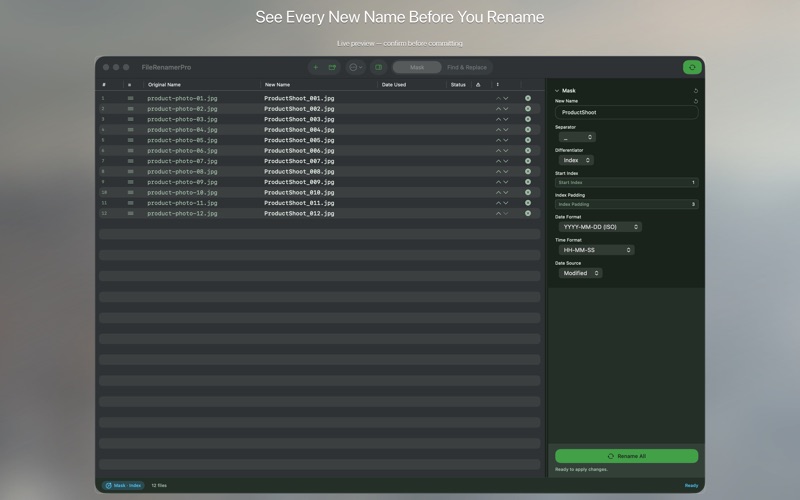
- The live preview updates immediately — you see exactly what every file will be named before you commit
Dealing with files with ugly auto-generated names
The other major use case is the mess that accumulates from downloads. Designers know this well: you download assets from stock sites and get names like "photo-1735492984.jpg" or "6f8e2c1a-b3d4-47a9-8801-f2c4e6a7b9d0.png". Services export CSVs as "export (2).csv". Screenshot tools produce "Screenshot 2025-01-15 at 14.23.47.png".
Use the Replace Text rule to strip the unwanted prefix, combined with a Sequential Number rule to create clean numbered versions. Or use the Extract rule to pull just the meaningful part from a longer name pattern.
Undo: the safety net that makes batch renaming risk-free
The moment that stops people from batch renaming is the fear of making a mistake across hundreds of files. File Renamer Pro has a single-click undo that reverts all renames simultaneously — it stores the original name mapping until you explicitly clear it. Rename 500 files, realize you used the wrong date format, undo in one click, fix the rule, re-apply. No manual reverting, no backup folder needed.
Saving presets for recurring tasks
Once you've built a rename setup that works — your standard photo organization rule, your client delivery rule, your asset cleanup rule — save it as a named preset. The next time you need it, open File Renamer Pro, select the preset, drop in the files, and apply. The setup work happens once.
Getting the most out of it
File Renamer Pro is $12.99 one-time on the Mac App Store, requires macOS 13 Ventura. The live preview is the feature to lean on — always check a few filenames in the preview list before applying, especially when using EXIF date extraction for the first time (some older camera files store timezone data differently). Once you've confirmed the pattern is right, apply with confidence.