
CSV Viewer & Editor - Convert


About CSV Viewer & Editor - Convert
CSV, or comma separated values, are a type of file used to transport data among different environments. They are particularly effective since the data encoding is made in a character string, separated by a specific character(usually comma or semi-colon).

Thinking about that, we present you CSV Viewer & Editor - Convert. It’s a lightweight application and a must have for anyone who wants to work with their CSV files.

•••••••••••••••••••••••••
Enjoy our amazing features
•••••••••••••••••••••••••

• CSV viewing

• CSV editing - add and delete columns, add and delete rows, customize column names and reorder columns

• CSV creating - create a new document from scratch

• CSV converting do JSON


•••••••••••••••••••••••••
How to Use
•••••••••••••••••••••••••

• To start a new document, click the new document icon (blank page with upwards arrow)
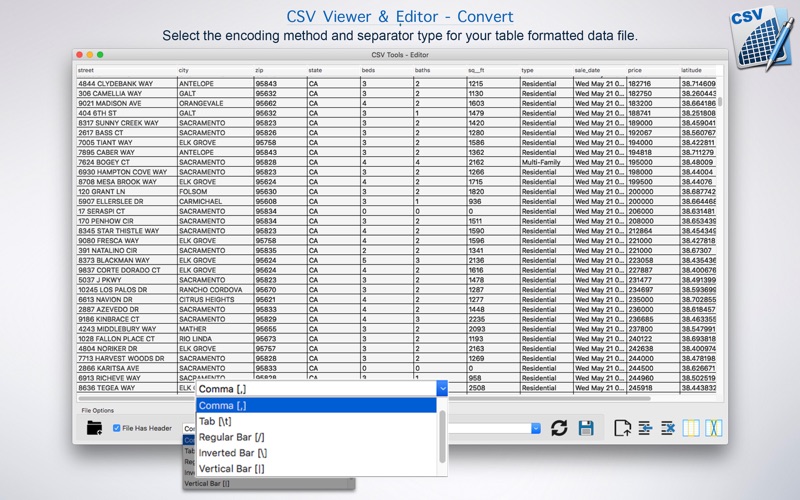
• To open an existing document, select your file’s encoding method and the separator character, then, if needed, check the File Has Header check box and click the open file icon(folder with a plus sign)
• If your file didn’t open properly, adjust the encoding and separator options and click Resync with file(2 black arrows in a circular shape)
• Double click a cell or column header to edit it’s text value
• To add or remove column or rows, click the buttons located on the bottom right hand side.
• When you’re done, click the save icon, set your output settings and click Save.
Screenshots
FAQs
How do I open a CSV with the correct delimiter and encoding?▾
Choose the file’s encoding and separator character before opening. If the first row is a header, check “File Has Header.” If the table doesn’t look right after opening, adjust the options and click Resync with file.
Can I edit column names and reorder columns?▾
Yes. Double‑click a column header to edit its name, and use the provided controls to reorder columns.
How do I add or remove rows and columns?▾
Use the buttons on the bottom‑right of the window to add or delete rows and columns as needed.
How do I convert a CSV to JSON?▾
Open your CSV, confirm the import settings (encoding, separator, header), then choose Save and select JSON in the output settings.
My file opened with garbled characters or misaligned columns. What should I do?▾
This usually means the encoding or separator is set incorrectly. Adjust those options and click Resync with file to reload the data.
Does the app handle files with a header row?▾
Yes. Enable the “File Has Header” option during import so the first row is treated as column names.
Where are files saved?▾
When you click Save, you’ll set the output format and choose a destination folder. The app saves to the location you select.
Is there a file size limit?▾
There is no fixed limit listed. Very large files depend on your device’s available memory and storage. If you run into issues, try closing other apps or splitting the CSV into smaller parts.