 BraveCL
How to make protected PDF copies for recipients on Mac
Create named PDF copies for an archive and individual recipients, with separate opening passwords and permissions for each copy.
- What you'll achieve
- You will have three named intended PDF copies: Household-Archive.pdf, Maya-Agreement.pdf and Nora-Agreement.pdf.
- What you need
- A Mac with PDF Encrypt & Protect installed.
- A PDF document you are authorized to protect and share with the intended recipients.
- A plan for who should receive each protected copy and how its credentials will be delivered.

One document can need different protection rules for different people. In PDF Encrypt & Protect on Mac, you can give an archive and each recipient a named PDF copy, then configure opening requirements, printing rights, content copying and credentials separately. This walkthrough follows the app's recipient-copy workflow using a sample home expense agreement.
1.Load the source PDF
Open PDF Encrypt & Protect and load the document to protect. The example uses Haven-Lane-Home-Agreement-2026.pdf. Check that the source appears in the central preview and the intended copy appears under Recipient Copies on the left.

PDF Encrypt & Protect with the Haven Lane home expense agreement preview and the initial copy selected 2.Name the archive copy
Select the initial group in the Recipient Copies navigator. Rename the group Household Archive, then name its intended PDF Household-Archive.pdf. This leaves a separately named archive output alongside the copies for individual recipients.

Household Archive recipient group selected with Household-Archive.pdf as the intended output name 3.Create a copy for each recipient
Use New Recipient Packet to add one group named Maya Chen and another named Nora Patel. The navigator now has three recipient groups: Household Archive, Maya Chen and Nora Patel. Each group has its own intended PDF file and protection settings.

Three recipient groups in the navigator: Household Archive, Maya Chen and Nora Patel 4.Require a password for Maya's PDF
Select Maya Chen's copy, named Maya-Agreement.pdf. Under Opening Requirement, choose Password required for Opening. Under Permissions, set Printing to Off. These restrictions apply to Maya's copy rather than the entire collection.

Maya-Agreement.pdf configured to require an opening password and disallow printing 5.Give Nora different PDF permissions
Select Nora Patel's copy, Nora-Agreement.pdf. Keep Opening set to None and allow High resolution Printing. Turn on Content copying and Accessibility extraction. Nora's printing and copying allowances are independent of Maya's stricter settings.

Nora-Agreement.pdf configured for high-resolution printing, content copying and accessibility extraction 6.Set each recipient's credentials
For Maya's password-protected copy, use the opening-password credential action and generate a session-only password in its sheet. Then select Nora's copy and use the owner-password credential action to generate an owner password. Dismiss each credential sheet, and confirm Nora's inspector reports an owner password set. Keep generated passwords in a secure place for delivery.
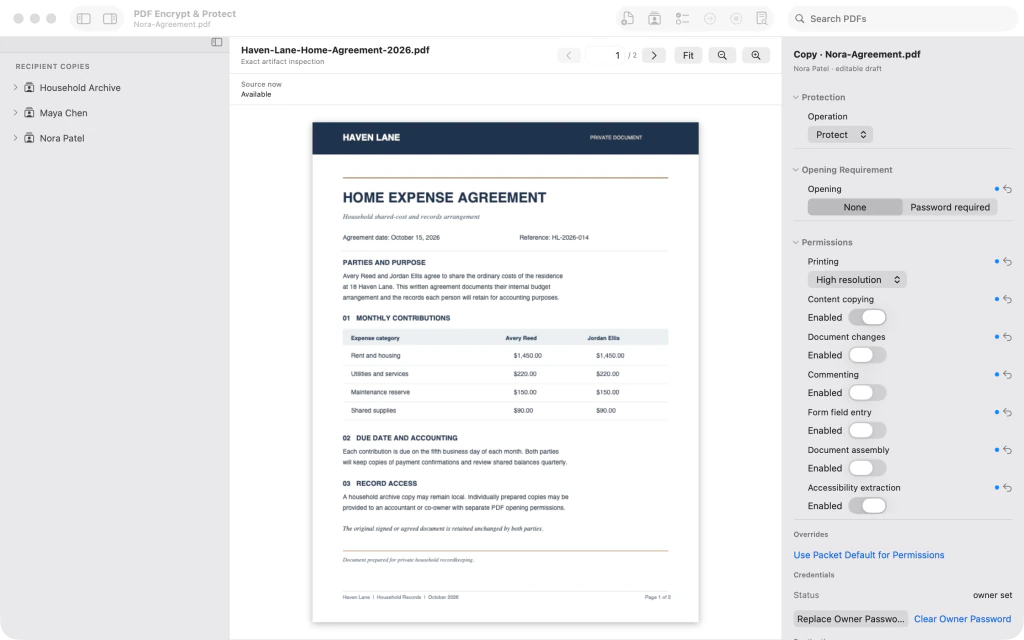
Nora-Agreement.pdf with its owner password set independently from Maya's opening credential 7.Review the named copies and restrictions
Expand the recipient groups in Recipient Copies. Confirm the three named files: Household-Archive.pdf, Maya-Agreement.pdf and Nora-Agreement.pdf. Select Maya's file to verify Password required for Opening and Off for Printing. The copies are configured; review the intended outputs before using the app's output operation.

Expanded recipient groups show Household-Archive.pdf, Maya-Agreement.pdf and Nora-Agreement.pdf, with Maya's protected settings visible


After the last step
Maya's copy requires an opening password and disallows printing; Nora's copy allows high-resolution printing and content copying. Each recipient's credentials are set independently. Review these configured copies before proceeding to the app's output operation.
Tips
Use descriptive recipient group and file names so you can distinguish the intended output PDFs.
Review each recipient group separately; changes to one copy's permissions need not match the others.
Store generated credentials securely and share them separately from the protected PDF outputs.
Watch outA configured recipient copy is not proof that a protected PDF file has been exported. Complete the app's output process and verify the resulting file before sharing.
Watch outIf you require a password to open a recipient's copy, retain the generated opening password. Losing it may prevent that recipient from accessing the file.
Watch outDo not reuse a single opening or owner password for recipients who should have independent access.

