A file's checksum is a mathematical fingerprint derived from its contents. If you change a single byte — any byte — the checksum changes completely. This property makes checksums the right tool for verifying that a file arrived intact, hasn't been tampered with, and is exactly what the sender intended. MD5 & SHA Checksum Tool brings this capability to Mac in a clean, native interface.
What checksums actually tell you
A checksum doesn't tell you the file is safe or the software is legitimate. It tells you the file you have is byte-for-byte identical to the file the checksum was calculated from. The security guarantee depends entirely on the authenticity of the published checksum. If a software vendor publishes an SHA-256 checksum on their official website alongside a download link, matching checksums means your download wasn't corrupted or intercepted. This is meaningful protection — it's what cryptocurrency software, Linux distributions, and security tools use to verify their downloads.

MD5 vs SHA-1 vs SHA-256: which to use
MD5: 128-bit hash, fast, widely used for file integrity checking. Not suitable for cryptographic security (known collision vulnerabilities), but perfectly adequate for verifying a file wasn't corrupted in transit. If a vendor provides an MD5 checksum, use it.
SHA-1: 160-bit hash, more collision-resistant than MD5 but also now considered broken for cryptographic purposes. Still common in older software distribution systems. Fine for integrity checking, inadequate for security-critical signing.
SHA-256: 256-bit hash, part of the SHA-2 family. This is the current standard for security-critical integrity verification. Use SHA-256 when you have the choice, especially for software, installer packages, and anything where the consequences of tampering are significant.
SHA-512: 512-bit hash. More collision-resistant than SHA-256, computationally slightly slower. Use when you need maximum security or when required by a specific security policy.
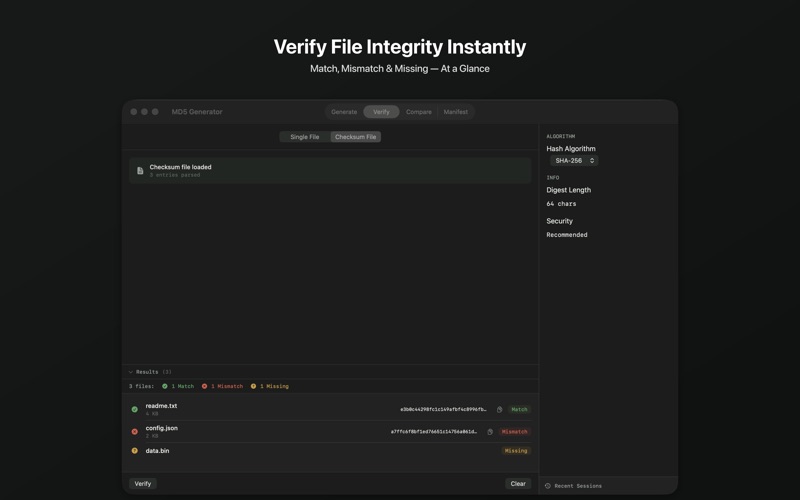
Verifying a download: the complete workflow
- Download the file (installer, archive, disk image)
- Find the published checksum on the vendor's website — look for "SHA-256" or "MD5" near the download link
- Open MD5 & SHA Checksum Tool and drag the downloaded file onto the window
- All four checksums are calculated and displayed
- Paste the vendor's checksum into the comparison field
- Green = match, the file is intact. Red = mismatch, don't open the file.
Generating checksums for files you distribute
If you distribute files — software builds, data exports, media deliveries — you should publish checksums alongside your downloads. Calculate the SHA-256 of each file you're distributing using MD5 & SHA Checksum Tool, then publish the hash in your release notes or alongside the download. Recipients can verify what they downloaded matches what you sent.
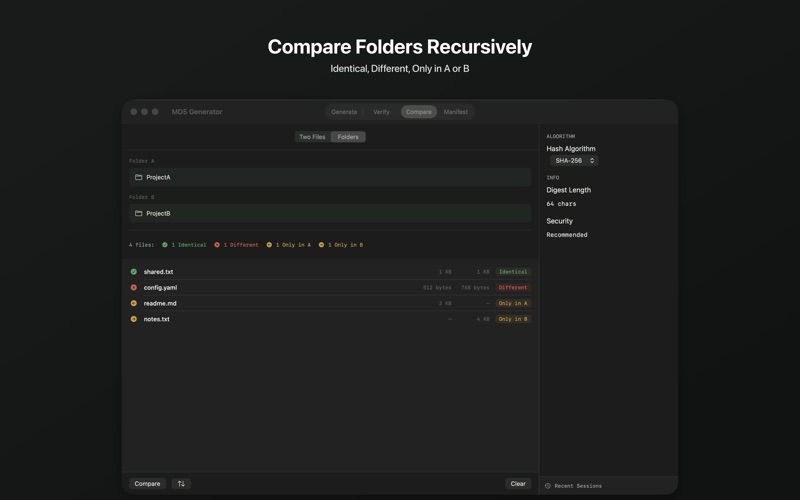
Terminal equivalent and why the app is still useful
macOS includes md5, shasum, and openssl dgst in Terminal. The app is useful when: you want a visual comparison without copying and pasting between a browser and a terminal window; you want all four checksums calculated simultaneously without separate commands; or you're less comfortable in Terminal and want the workflow to be frictionless.
MD5 & SHA Checksum Tool is $4.99 one-time on the Mac App Store, requires macOS 13 Ventura.