If you've ever opened a Finder window and had to slow down to read every folder name to find the right one, you already understand why visual folder organization matters. Humans parse shapes and colors faster than text — and the default grey folder grid your Mac gives you doesn't help. Custom Folder Icons lets you fix that in about 30 seconds per folder.
Why visual folder organization works
The psychology here is simple: when every folder looks identical, you read. When each folder has a distinct color or icon, you recognize. For a development workspace with 8 client projects, or a creative folder with 12 active campaigns, the difference is meaningful — especially at the end of a long day when you'd rather not think.
The basic workflow
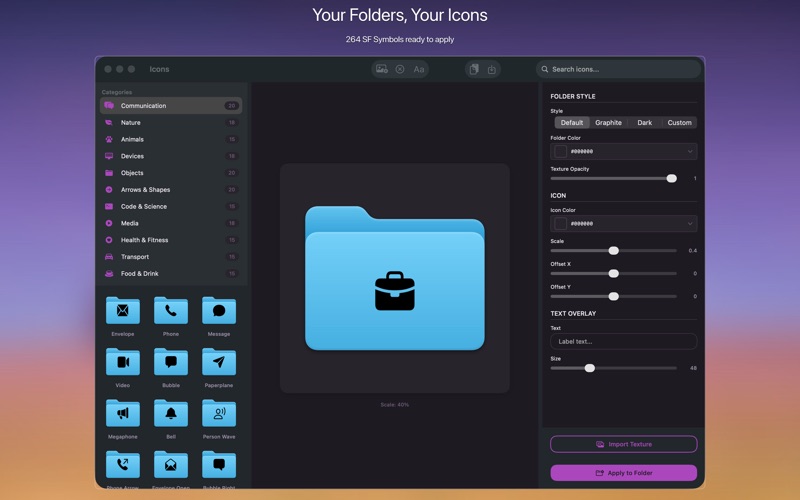
Open Custom Folder Icons, drag a folder from Finder into the app's drop zone, and you're immediately in the editor. From here you have three paths:
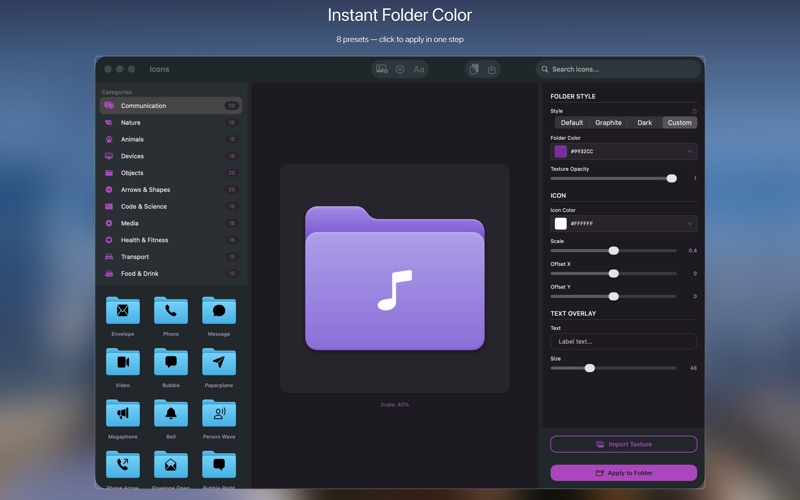
- Color tint: Pick from the color grid or enter a hex value. The tint is applied to the default macOS folder shape, so it still reads as a folder — just unambiguously yours.
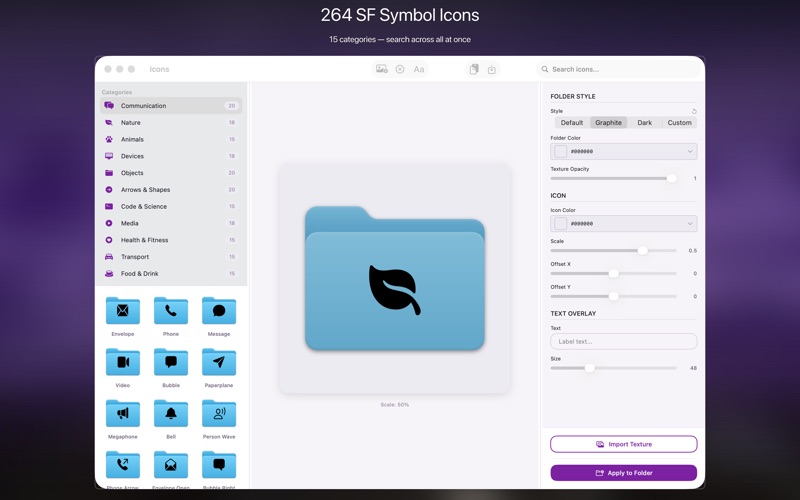
- Icon from the library: The built-in icon library covers most common use cases — code, design, finance, camera, music, writing. Browse and click to apply instantly.
- Custom image: Drag any PNG with transparency (your client's logo, a project asset, a symbol you've made) into the icon slot. Scale and position it within the folder frame.
A practical development workspace setup
Here's a system that actually holds up. Give each client project a unique tint from a consistent palette — cobalt for one client, forest green for another, warm amber for a third. Inside each project folder, give standard subfolders recognizable icons: a terminal icon for scripts/, a document icon for docs/, a camera icon for assets/. Once set up, navigating to the right place becomes a color + shape pattern match, not a read-every-name scan.
For solo developers: color-code by project status instead. Active projects get your accent color. On-hold gets muted grey. Archived gets a faded tint. You'll know at a glance what needs attention without opening anything.
Batch applying and restoring
When setting up a new project from a template, you often want to apply the same structure across multiple folders at once. Select multiple folders from Finder, drag them all in together, and apply the same tint or icon in one pass. If you ever need to restore the original macOS folder appearance — say, before sending a project folder to a collaborator — a single click restores all originals without leaving a trace.
Getting the most out of it
The best time to build your folder system is when you're starting a new project, not retroactively. Spend 5 minutes setting up the structure with icons and tints before you start dropping files in. The habit compounds — a workspace that took 5 minutes to set up visually can save you minutes of navigation every day for months. Custom Folder Icons is $9.99 one-time on the Mac App Store, requires macOS 13 Ventura.