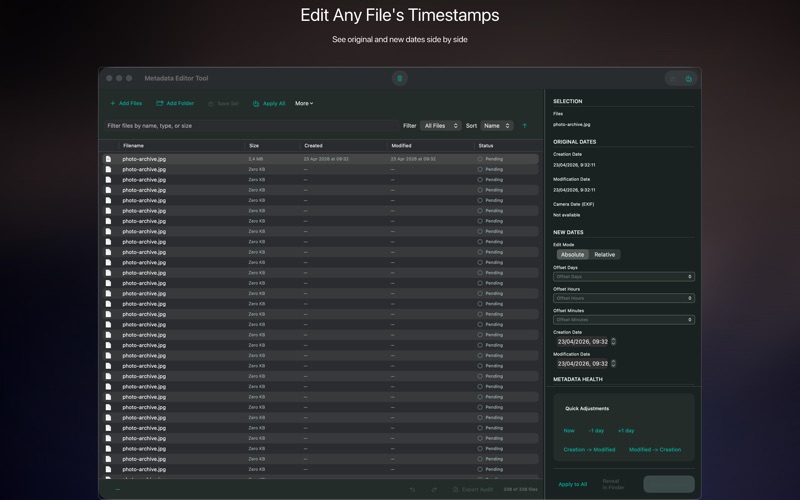
Every file on your Mac has three timestamps: created, modified, and accessed. These timestamps normally reflect what actually happened to the file. But they break in common, predictable ways: when you import a photo from your iPhone, the "Date Modified" becomes today even if the photo is three years old. When you copy files between drives, the modification dates reset. When a scanner produces JPEGs, they're all timestamped to the moment of scanning, not the document's actual date. File Date & Time Editor fixes this by letting you set timestamps to whatever they should actually be.
The scanned document problem
Imagine you're digitizing a box of old documents — receipts, contracts, letters from 2010–2020. Your scanner produces 200 JPEG files, all timestamped to today. Your filing system sorts by date, so all 200 files land in today's folder, not spread across the decade they actually span. You now have to manually fix 200 timestamps — or use File Date & Time Editor to set them in batch.
The workflow: sort the files by their document content date, select groups by year, and apply the correct date to each group with one operation. 200 files with correct timestamps in 20 minutes instead of 2 hours of manual editing.
iPhone photo imports
When you AirDrop or cable-transfer photos from iPhone to Mac, the file's "Date Modified" timestamp is set to the transfer time, not when the photo was taken. The EXIF metadata embedded in the JPEG still has the correct "Date Taken" from the camera, but Finder's sort-by-date view uses the file system timestamp, not EXIF. File Date & Time Editor can read the EXIF date from each photo and apply it as the file system creation date, making Finder sorting work correctly.
Correcting files after a drive copy
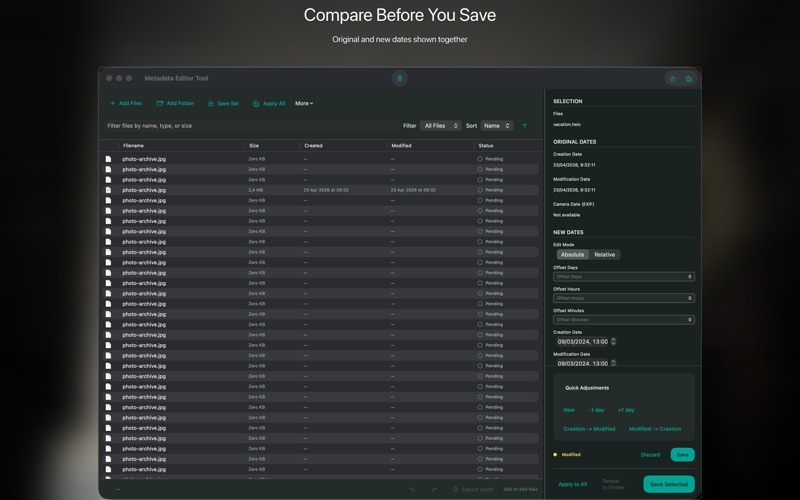
Copying files with cp or Finder between volumes resets modification dates to the copy time. This is macOS behavior — the file was technically "modified" when it was written. If you back up an archive and the modification dates become today, File Date & Time Editor can restore them from a reference source, or you can apply timestamps from the original files you still have. The created date is typically better preserved than the modified date across copies.
Batch operations by date offset
An advanced use case: shift all timestamps in a folder by a fixed offset. If you were in a different timezone when your photos were taken and the camera was set to UTC but the events happened in GMT+9, every timestamp is 9 hours off. Apply a +9 hour offset to all files in the batch to correct the entire collection at once.
Technical note on macOS timestamps
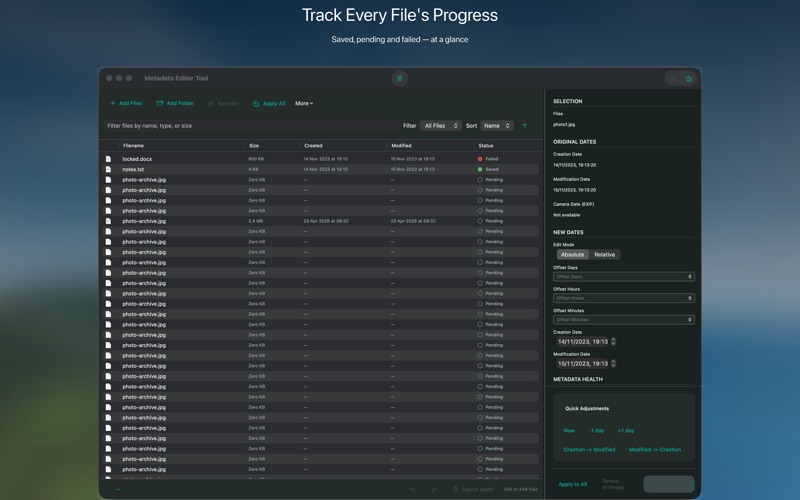
macOS maintains three timestamps per file: birthtime (created), mtime (modified), and atime (accessed). File Date & Time Editor lets you set all three independently. Most use cases only require setting the created and modified dates. The accessed date changes every time a file is opened, so there's rarely a need to set it manually.
File Date & Time Editor is $6.99 one-time on the Mac App Store, requires macOS 13 Ventura.