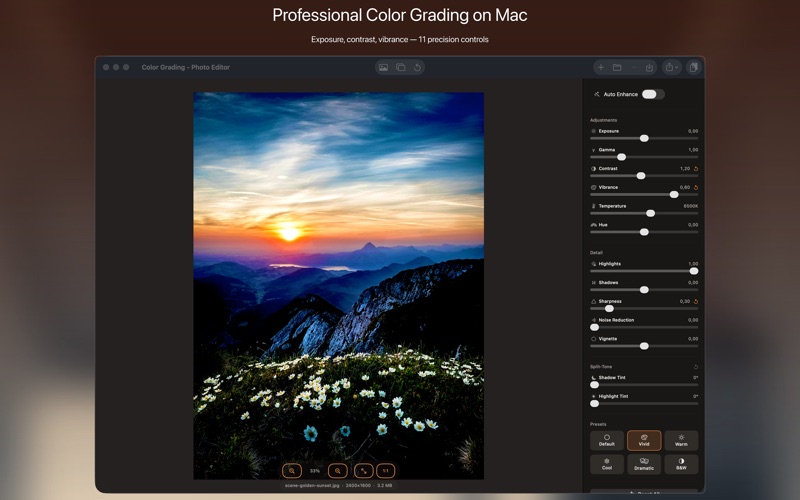
Color grading is the process of adjusting the color and tone of a photo to achieve a specific look. Not correction — that's fixing problems like white balance and exposure. Grading is creative: turning a technically correct photo into an image with a distinct character. Warm and cinematic, cool and desaturated, high-contrast and punchy, faded film-like — these are grading decisions, not correction decisions. Color Grading Photo Editor brings these controls to Mac in a focused, non-destructive workflow.
The difference between correction and grading
Correction asks: what does this scene actually look like? Grading asks: what do I want this scene to feel like? A photo of a coffee shop at noon is correctly a bright, warm space. Graded for Instagram, you might push it cooler with slightly faded shadows and lifted blacks to create a more aspirational, editorial feel. Graded for a photojournalism story, you might push contrast and desaturate slightly for a harder, documentary look. Same raw exposure, completely different emotional registers.
The three-way color grade
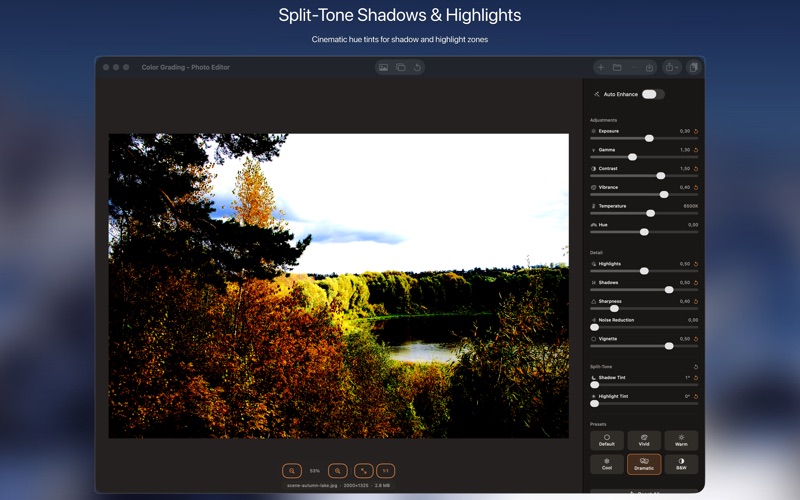
Professional color grading tools separate the image into three zones: shadows (the darkest areas), midtones (the middle range), and highlights (the brightest areas). Each zone gets its own color wheel where you can push the temperature, tint, and saturation independently. This is how you create the classic cinematic look where shadows are pushed cool-blue, midtones are neutral, and highlights are slightly warm — a three-way split that adds depth and atmosphere that a simple temperature slider can't produce.
Color Grading Photo Editor uses this three-way structure as its primary grading interface. The workflow is: set your overall exposure and contrast first, then use the wheels to add color character zone by zone.
LUTs: repeatable looks for consistent series
A LUT (Look Up Table) is a saved color transformation — a mathematical description of how to convert every color in an image. LUTs are how colorists in film and video maintain consistent grades across hours of footage. For still photography, LUTs solve the same problem: if you shoot a ten-photo series and want all ten to have the same grade, apply the same LUT to all ten in a batch.
Color Grading Photo Editor supports importing LUTs in the .cube format (the industry standard). There's a thriving ecosystem of free and paid LUTs available online for specific looks — film emulation, cinematic grades, portrait-specific adjustments. Import a LUT, apply it to your photo, then adjust the intensity. The LUT gives you the baseline; your fine-tuning makes it fit the specific image.
Building a consistent look for a photo series
The professional workflow: grade one photo from the series until it looks right. Export those settings as a preset. Apply the preset to the remaining photos. Batch process. Review, then make any per-image adjustments where the lighting or subject required it. This workflow treats the grade as a starting point applied uniformly, with individual refinement on top.
HSL color targeting
Beyond the three-way grade, HSL (Hue, Saturation, Lightness) controls let you target specific colors independently. If the greens in a landscape are too yellow, shift just the green hue toward blue. If the sky looks washed out, boost the saturation of blues only. This per-channel precision is what separates dedicated color grading tools from basic photo editors that only offer global saturation sliders.
Non-destructive editing
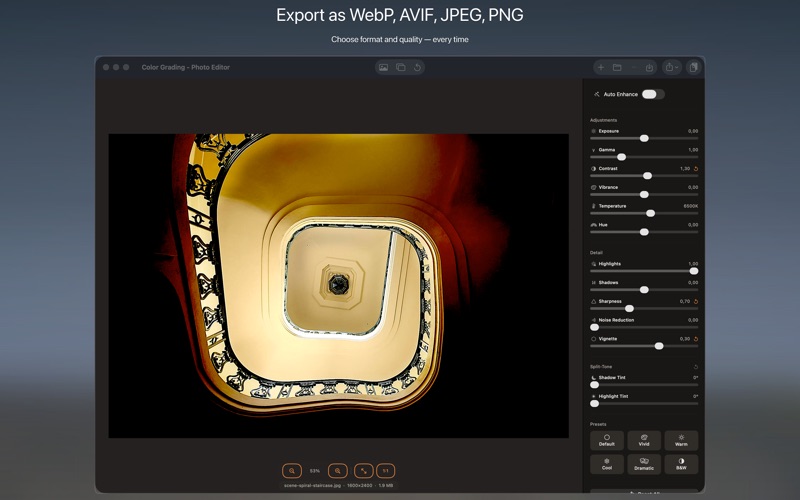
All edits are applied non-destructively — your original file is never touched. Export the graded version as a new JPEG or PNG. Color Grading Photo Editor is $12.99 one-time on the Mac App Store, requires macOS 13 Ventura.