A 12-megapixel iPhone photo is typically 4–6MB. A burst of 20 photos is 80–120MB. An evening of shooting with a mirrorless camera can easily produce 2–4GB. The size problem isn't the storage on your device — it's everything that happens after: sharing via iMessage, attaching to email, uploading to a client portal, posting to a website. Photo File Size Reducer: Compress solves this by reducing photo file sizes without visually compromising the images.
How photo compression actually works
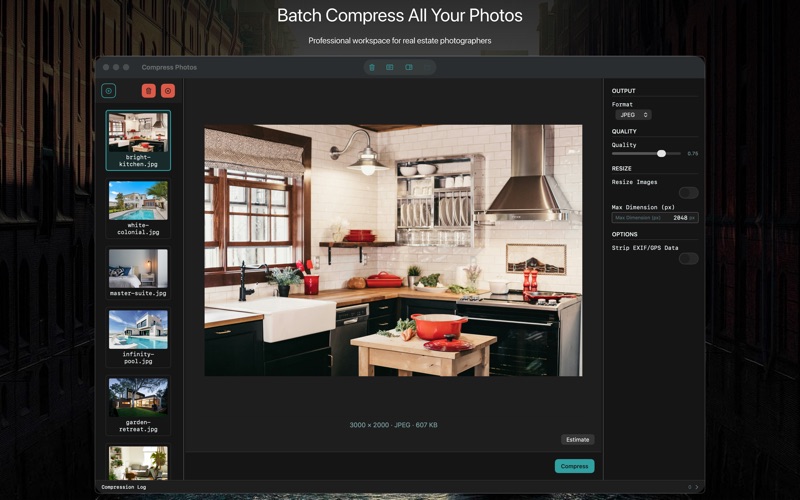
JPEG compression is lossy — it discards image information to achieve smaller files. The quality setting (often expressed as a number from 0 to 100 or as a percentage) controls how aggressively it discards. At quality 95, the file is barely smaller than uncompressed but visually indistinguishable from the original. At quality 60, the file is dramatically smaller and the compression artifacts become visible, especially in smooth areas like sky and skin. The practical sweet spot for sharing is quality 75–85: significantly smaller than original, visually clean at normal viewing sizes.
Choosing the right quality level for your context
Email attachments: 70–80% quality. Most email providers limit attachments to 10–25MB. At 75% quality, a batch of 10 typical iPhone photos compresses from ~50MB to under 10MB — safely under most limits while remaining sharp enough for recipients to see clearly.
Sharing to social media: 80–85%. Social platforms (Instagram, Facebook, Twitter/X) re-compress images on upload regardless of what you send. There's no benefit to sending a 5MB image when the platform will compress it to 500KB anyway. Send a pre-compressed version and maintain control over the compression artifacts.
Website images: 75–80% at the appropriate display resolution. A website hero image displayed at 1600px wide doesn't need to be a 4000px wide source file. Resize to display dimensions first, then compress.
Client photo delivery: 90–95% or no compression. When delivering photos to a photography client, don't compress beyond light quality reduction unless specifically requested. Clients often print these images.
The batch workflow
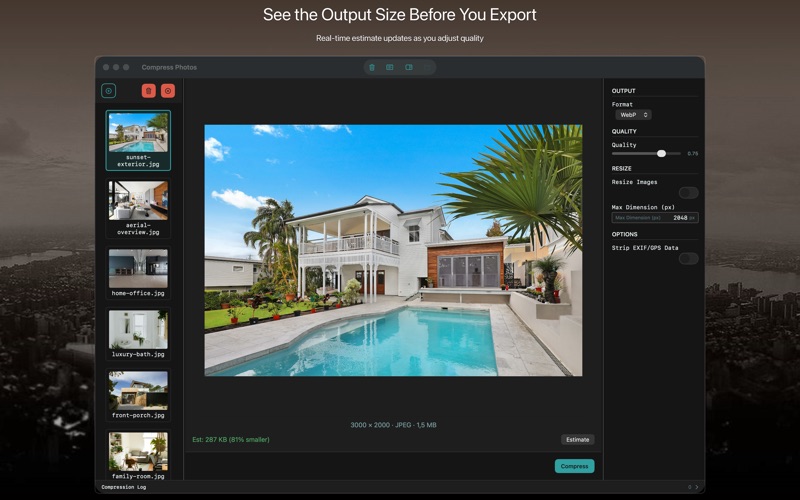
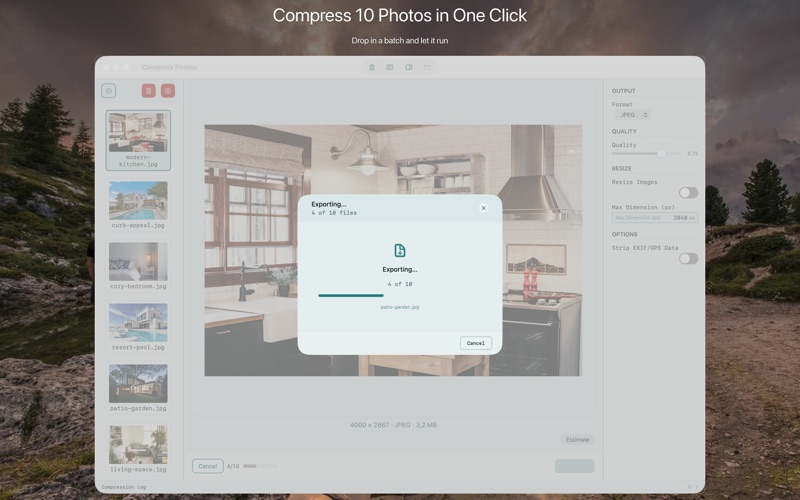
Select your source folder, set the quality level, choose the output folder (the app never overwrites originals), and run. Photo File Size Reducer processes all images in parallel and shows a per-file size comparison when done — original size vs. compressed size, so you can see exactly how much space you saved across the batch.
Resize dimensions along with quality
File size reduction comes from two independent levers: quality (compression) and dimensions (resolution). A 4000×3000 photo at quality 80 is still much larger than a 1200×900 photo at quality 80. For web use, resizing to the actual display dimensions is often more impactful than compression alone. Photo File Size Reducer lets you set both in a single pass — resize and compress together without intermediate steps.
Privacy: photos don't leave your Mac
All compression happens locally. No photos are uploaded to any server. Photo File Size Reducer: Compress is $7.99 one-time on the Mac App Store, requires macOS 13 Ventura.