The QR code renaissance is real. They're on restaurant menus, product packaging, business cards, event posters, and storefronts. But most of them look like they were generated by a 2012 web tool: black squares on white, no branding, indistinguishable from any other QR code on the table. When a customer scans your menu QR code, that first moment of interaction reflects your brand — and a generic black square says nothing.
Why branded QR codes perform better
A QR code with your brand colors and logo in the center communicates trust and intentionality. It says "this is ours" rather than "someone printed this." Styled QR codes have higher scan rates than generic ones — partly because they look less like spam and more like something the business actually made. CodeGet lets you control every visual element while keeping scannability intact.
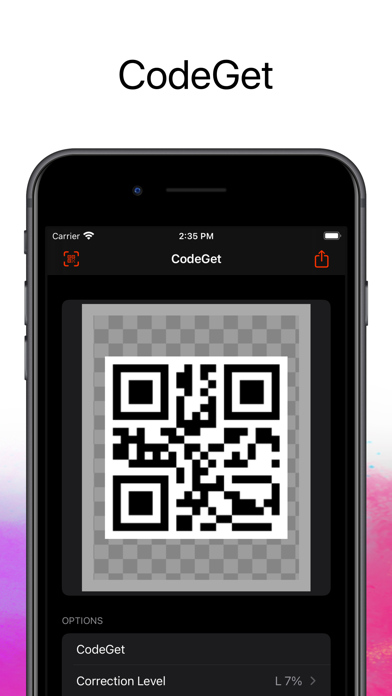
Creating your first branded QR code
Start with a URL code — the most common use case. Open CodeGet, select URL as the content type, and paste your link. You'll see a live preview that updates as you make design changes.
- Color the dots: Change the dot color from black to your primary brand color. A deep navy, forest green, or brand red all work well. Avoid very light colors — they reduce contrast and can cause scan failures in bright light.
- Keep the background light: Whatever you do with the dots, keep the background white or very near-white. The scanner needs clear contrast — dark-on-dark fails in bright environments.
- Embed your logo: Drag your logo PNG into the logo drop zone. The redundancy built into QR codes means a small logo covering the center still allows clean scanning — stay under 30% of the total QR area.
- Adjust the eye shapes: The three corner squares can be rounded or styled independently. Rounded eyes give the QR a softer, more modern feel.
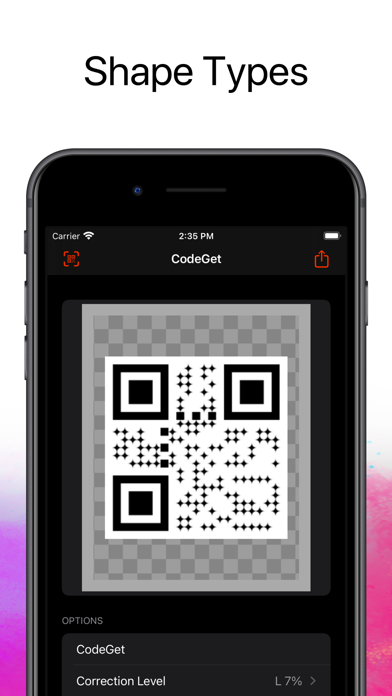
Export for the right use case
The format you export matters enormously:
- SVG: For print — business cards, posters, packaging. Scales to any size without pixelation. Send this to your printer.
- PNG at 1024px+: For digital use — websites, presentations, social media.
- PNG at 300px: For email footers and small digital placements.
The Wi-Fi QR code trick everyone should use
Beyond URLs, one of the most practical uses is sharing Wi-Fi credentials. Instead of pointing guests to a sticky note on the fridge, create a Wi-Fi QR code once and print it. Select Wi-Fi as the content type, enter your SSID, password, and security type. Guests scan it and connect automatically — no typing, no "is that a capital I or lowercase L."

Other content types worth knowing
- vCard: Scan to add contact info directly to iPhone Contacts — better than a business card that gets lost
- Email: Pre-filled email address and subject line for contact forms on printed materials
- Calendar event: Let people add your event to their calendar with one scan
CodeGet is $4.99 one-time on the Mac App Store, requires macOS 13 Ventura. Everything is generated on-device — your URLs and credentials don't pass through any server.