 BraveCL
How to create a branded QR code with a logo on Mac
Design a QR code for your link with diamond modules, a two-color gradient, a center image, and a decorative frame on Mac.
- What you'll achieve
- You will have a framed, two-tone QR design with a center graphic and your chosen destination link.
- What you need
- QR Logo Frame Studio version 4.0 on Mac.
- A website URL to encode.
- An optional logo or image you have permission to use.
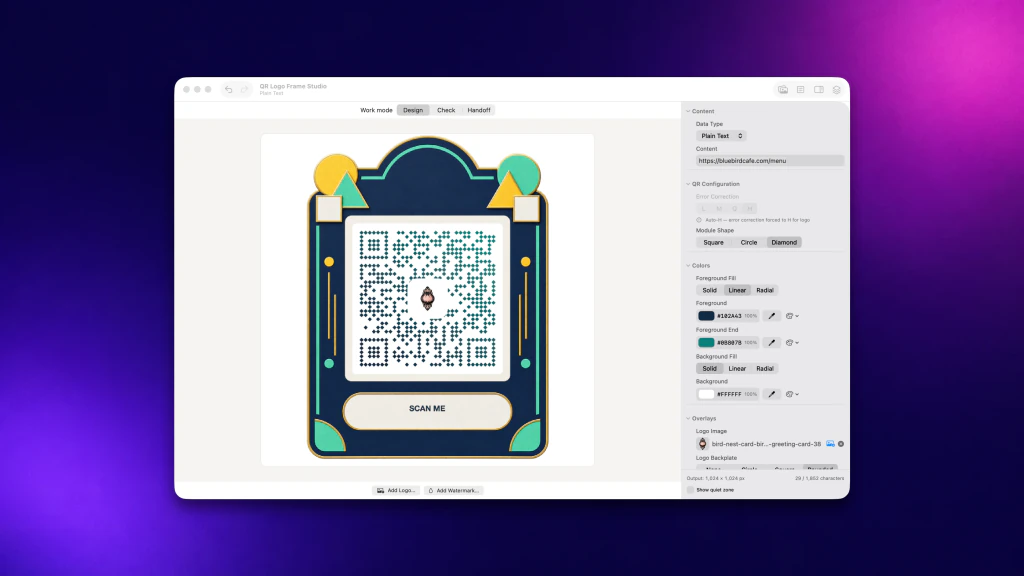
QR Logo Frame Studio lets you build a branded QR design around a website link. This guide follows the app's first App Store screenshot: create the code, change its module shape and colors, add an image, and finish with a frame.
1.Enter the destination URL
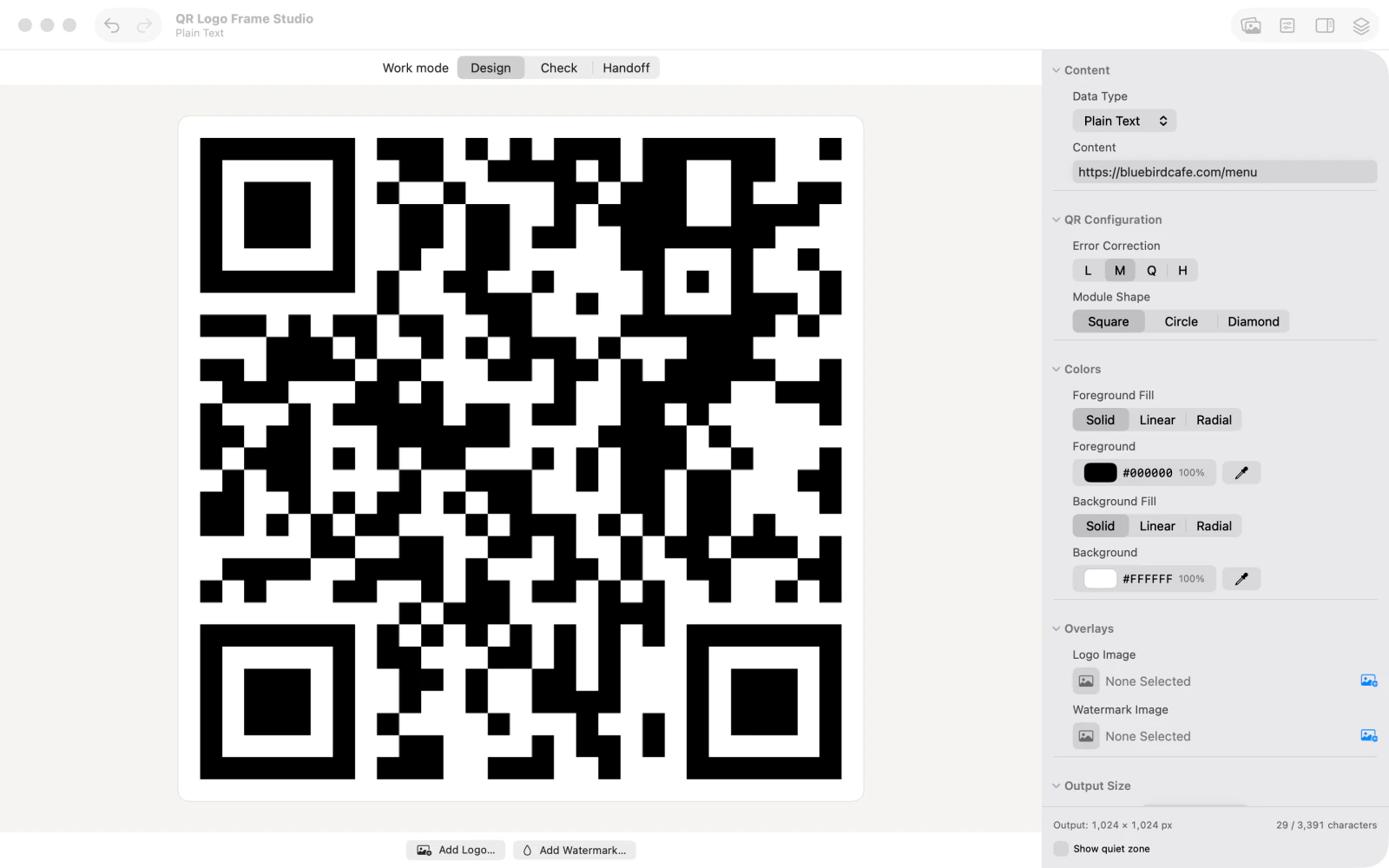
In Content, enter the website address the code should open. The preview immediately displays a QR code for that destination.
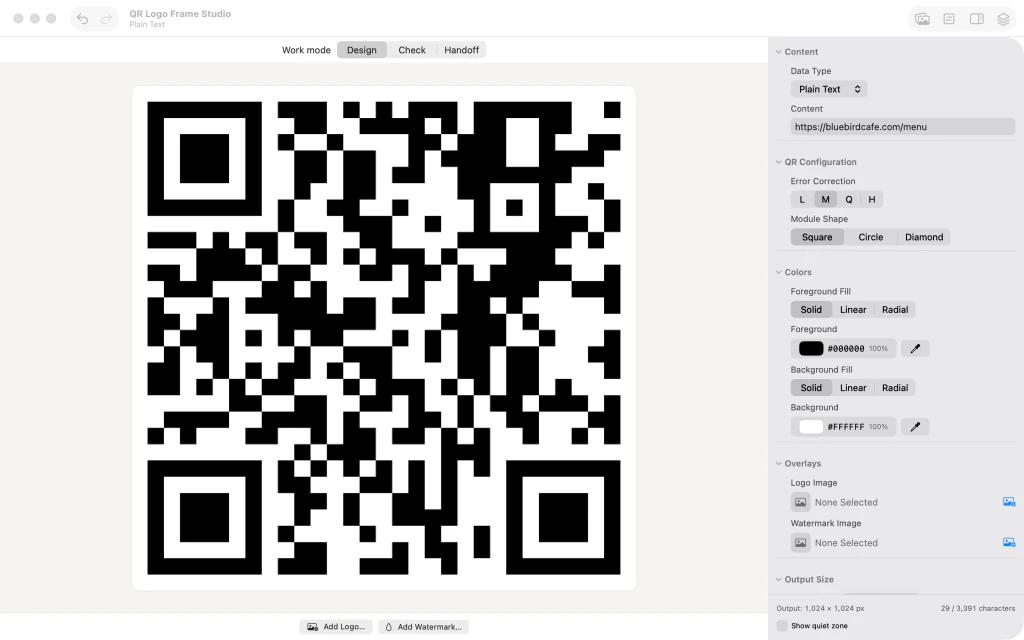
QR Logo Frame Studio with the website URL entered and a square black-and-white QR code preview. 2.Choose diamond-shaped QR modules
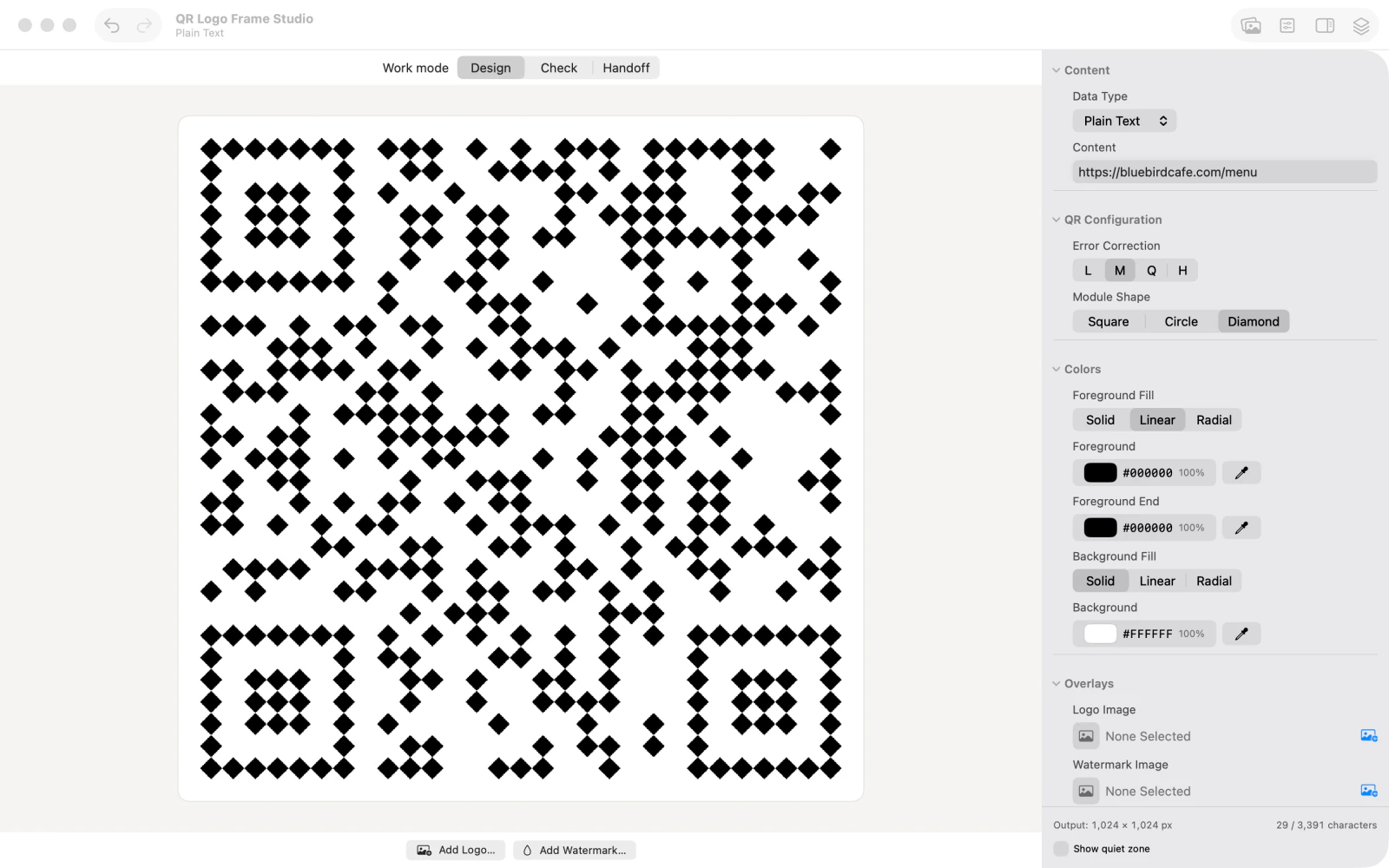
Under Module Shape, select Diamond. The preview replaces square modules with a diamond pattern while retaining the destination URL.

QR code preview with diamond-shaped modules after Module Shape is set to Diamond. 3.Choose a linear color gradient
Under Foreground Fill, select Linear. The foreground now has starting and ending colors to customize.
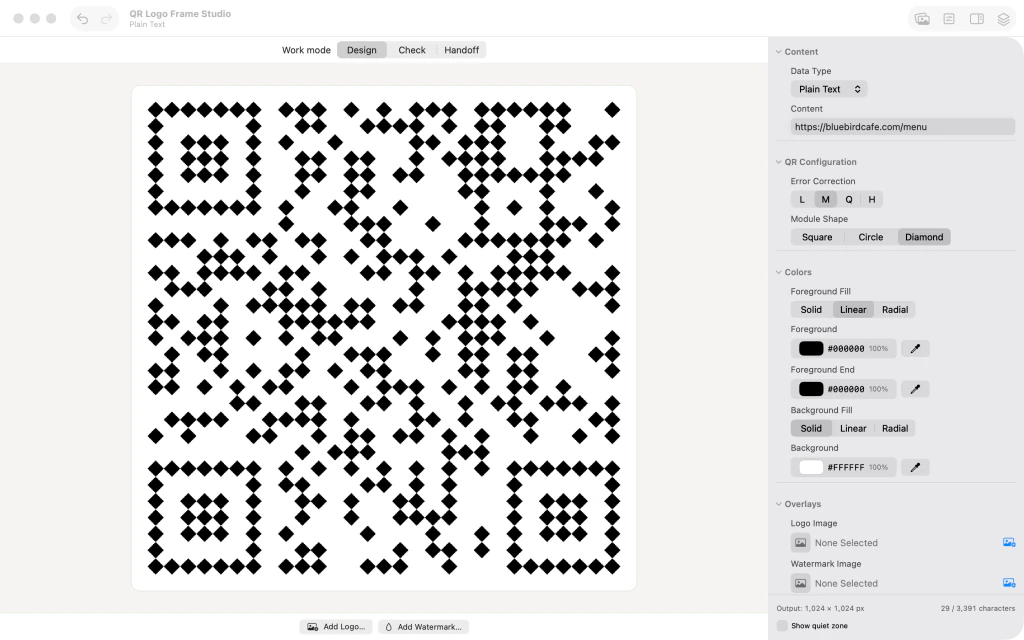
QR code design inspector with Linear foreground fill selected and both gradient color controls visible. 4.Set the two foreground colors
Set Foreground to a dark blue such as #102A43, then Foreground End to teal such as #0B807B. The QR modules display the two-tone gradient.

QR code preview styled with a dark navy to teal gradient while the Foreground and Foreground End colors appear in the inspector. 5.Place an image inside the QR code
In Logo Image, choose the picture or brand mark you want to use. The app adds it at the center on a light backplate, as shown by the example emblem.
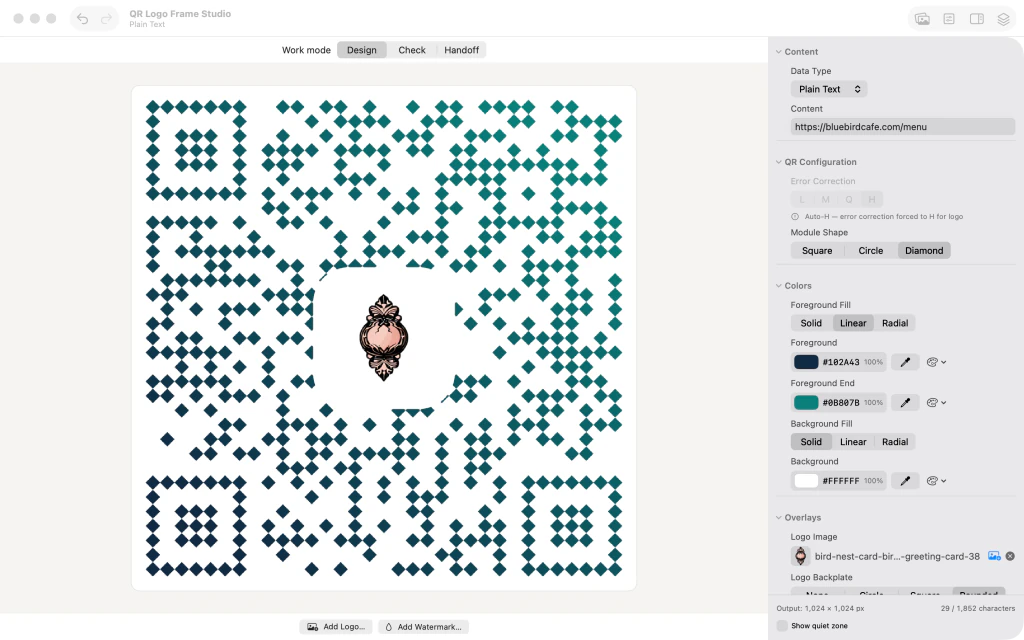
Two-tone QR code with a centered illustrated emblem on a white backplate, and Logo Image selected in the inspector. 6.Apply a decorative frame
Open Frames, browse the website frames, choose a decorative layout, and close the picker. Review the framed QR preview before sharing it.

Finished branded QR code inside an ornate navy and teal frame with Scan Me label, centered emblem and gradient modules.



After the last step
Use the app's Check mode to test it before distributing the artwork.
Tips
Choose distinct foreground and background colors so the QR modules remain legible.
Compare the final design at the size at which people will scan it.
If you prefer a simpler result, keep the code without a decorative frame.
Watch outAn overlaid image or elaborate frame can affect QR scanning. Check the actual finished code in the app's Check mode before sharing or printing it.

