 BraveCL
How to compare a PSD and JPEG preview on Mac
Open a Photoshop PSD, inspect its JPEG proof, then compare source and output in Split view before saving.
- What you'll achieve
- You have a prepared JPEG preview and can inspect it against the original in Split mode.
- What you need
- PSD 2 JPEG 4.0 or later on a Mac.
- A saved PSD or PSB composite that the app can open; alternatively use the built-in sample.

PSD 2 JPEG lets you see the prepared JPEG alongside the original Photoshop composite before you export. This walkthrough uses a single PSD to show how to check quality, file size and visual differences.
1.Open PSD 2 JPEG
Launch PSD 2 JPEG. The empty workspace offers Add PSD Files to choose a saved Photoshop composite. Click Add PSD Files to begin.

PSD 2 JPEG's empty workspace with the Add PSD Files button. 2.Add a PSD and inspect its JPEG proof
Choose a supported PSD or PSB file in the file picker. Wait for the preview to finish preparing. The file appears in the sidebar with JPEG Only selected. Inspect Quality and the JPEG Proof panel for the selected compression quality, dimensions and prepared file size.

PSD 2 JPEG showing 01-lake.psd as a JPEG preview, quality at 85 percent, and its JPEG Proof information. 3.Compare the source with Split
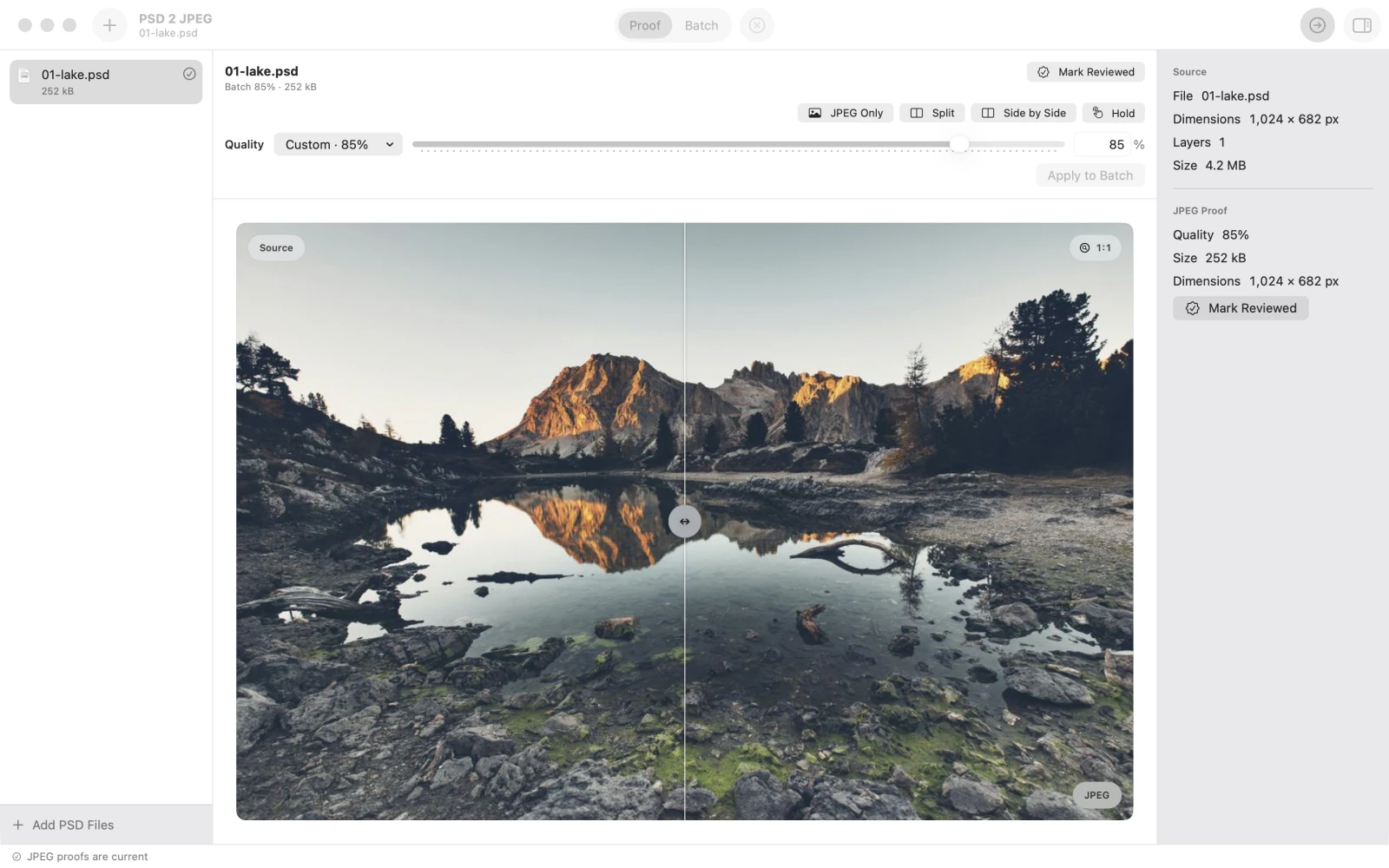
Click Split above the preview. The original source is on the left, and the prepared JPEG is on the right. Drag the center handle across the artwork to inspect differences before choosing what to save. You can also select Side by Side for two separate previews.
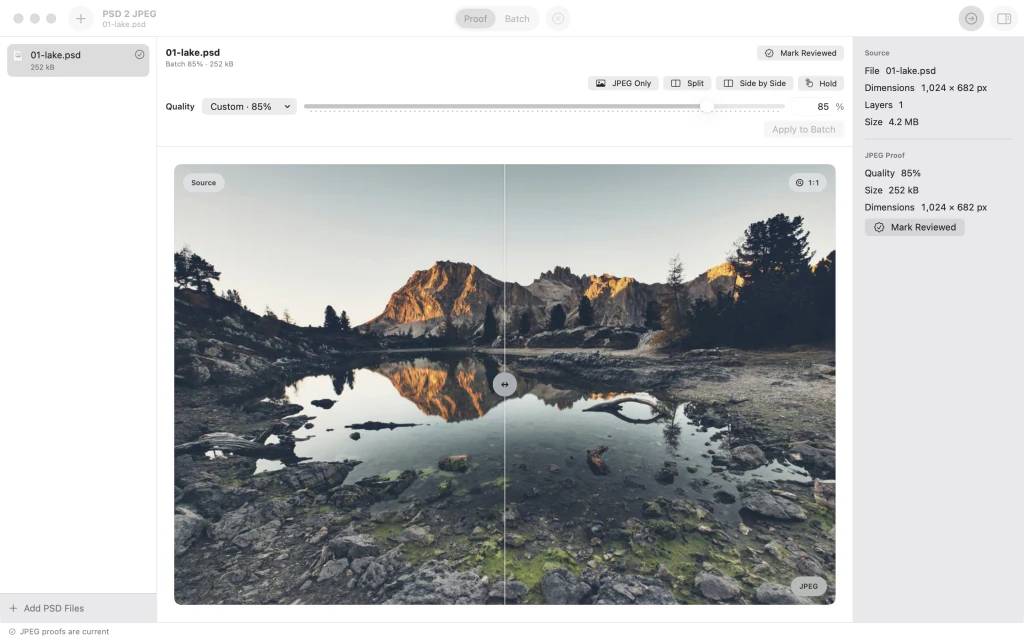
Split view comparing the original PSD and JPEG proof of the lake and mountain image, divided by a central handle.


After the last step
No files are exported by these comparison steps; choose an export destination separately when you are satisfied.
Tips
Use JPEG Only to see the output by itself before switching to Split.
Inspect the JPEG Proof size and dimensions while you adjust the Quality setting.
Try Side by Side when you want both views visible without a movable divider.
Watch outA preview does not save the JPEG. Export it only after you approve the result.
Watch outThe app converts saved Photoshop composites, not editable layers; damaged, unsupported or oversized PSD/PSB files can be refused.

