 BraveCL
How to create HTML image snippets on Mac
Generate HTML image tags with embedded Base64 data and descriptive alt text for multiple images.
- What you'll achieve
- A ready HTML set containing three image tags with embedded data URIs and descriptive alt text, available as a complete artifact to copy or deliver.
- What you need
- Image Base64 Encoder installed on Mac
- The built-in sample images, or your own PNG or JPEG files
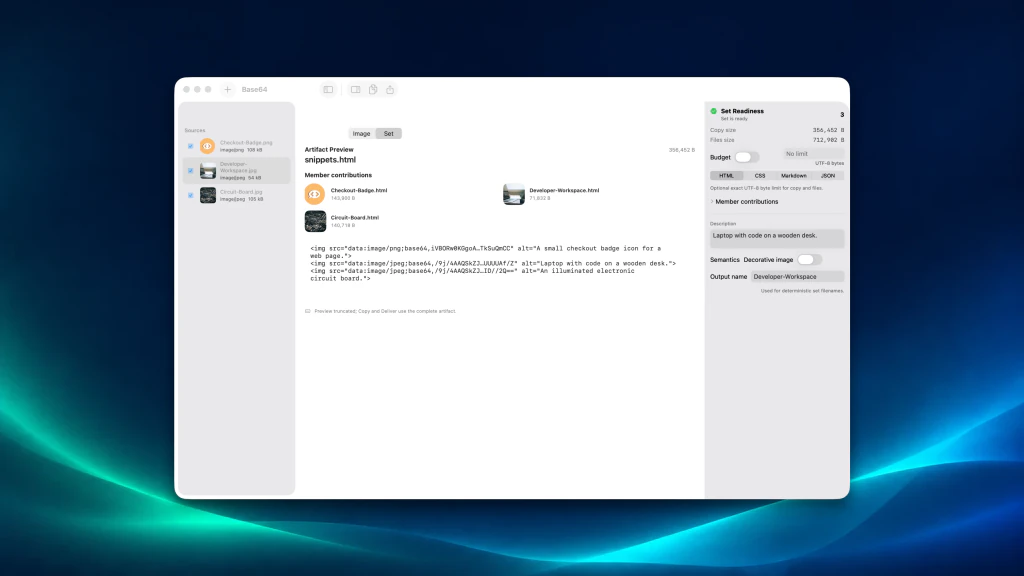
Image Base64 Encoder combines multiple pictures into self-contained HTML image snippets. Begin with its built-in samples to see how an image set and its descriptions work.
1.Load the sample images
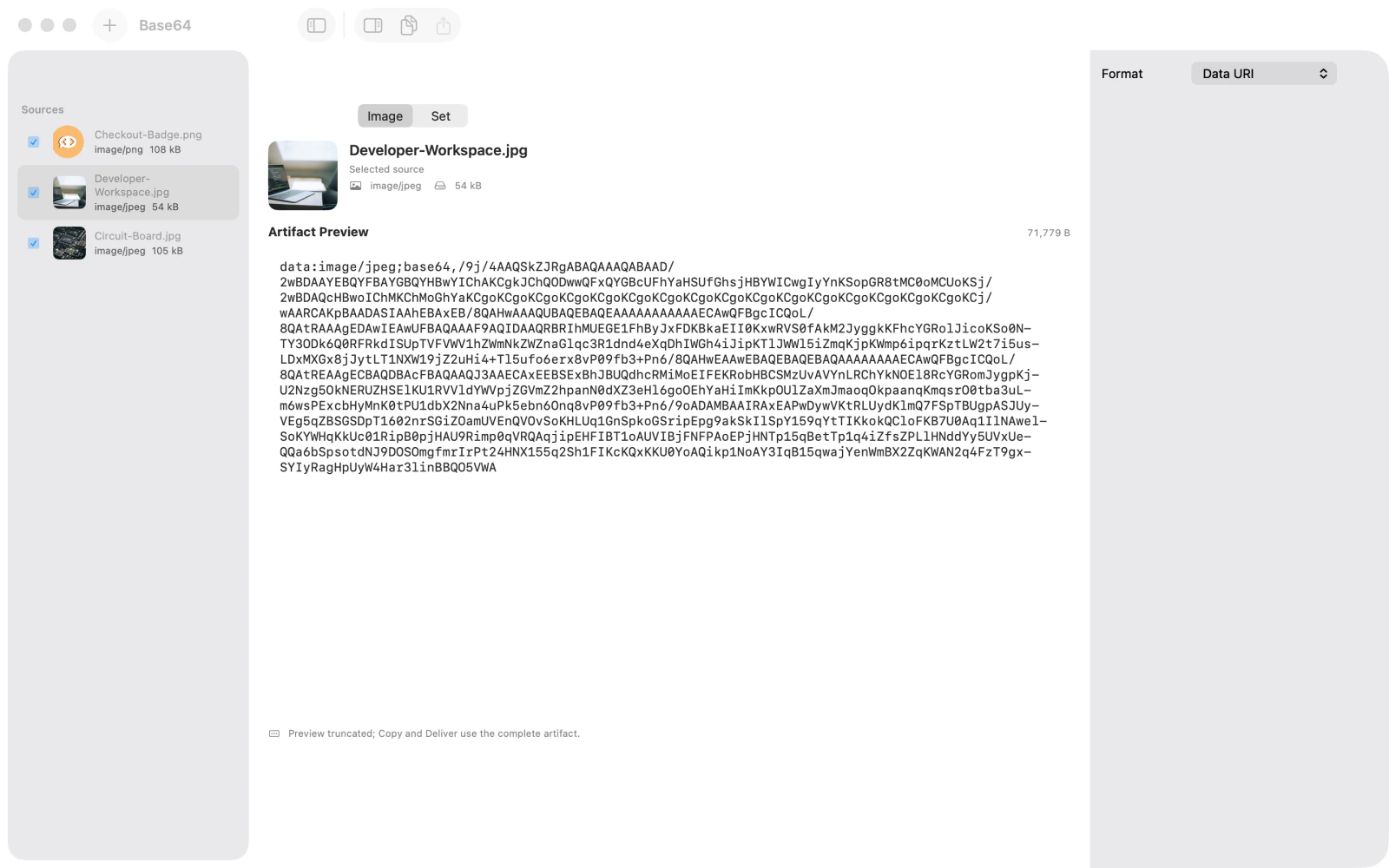
Choose Try Samples to load the included PNG and JPEG examples. The Sources list shows Checkout-Badge.png, Developer-Workspace.jpg, and Circuit-Board.jpg. The Image view previews an encoded data URI for the selected file.
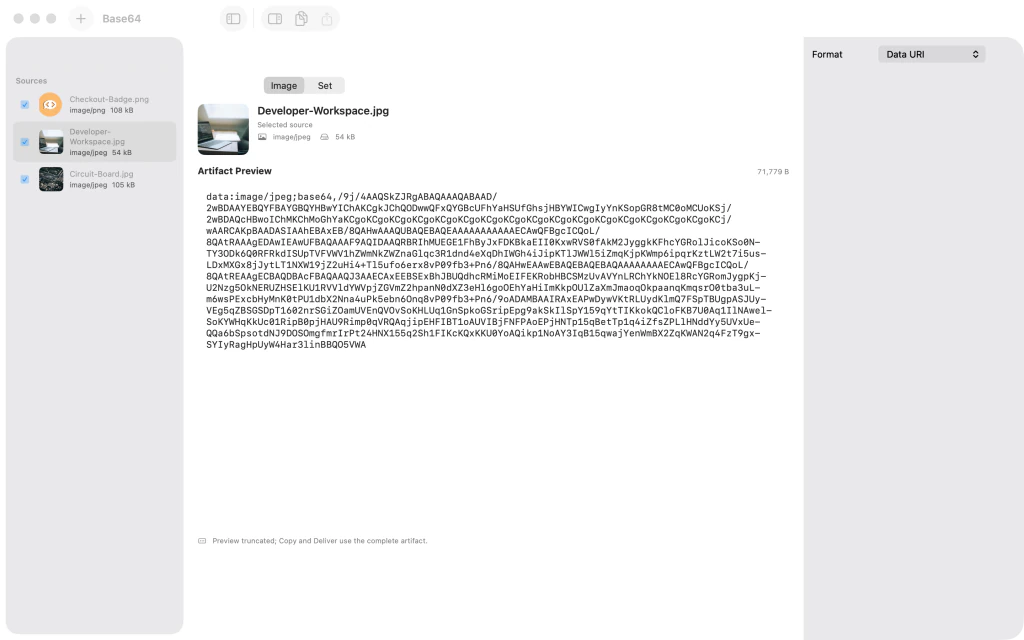
Image Base64 Encoder on Mac showing three loaded PNG and JPEG samples and an encoded Data URI preview 2.Build the HTML image set
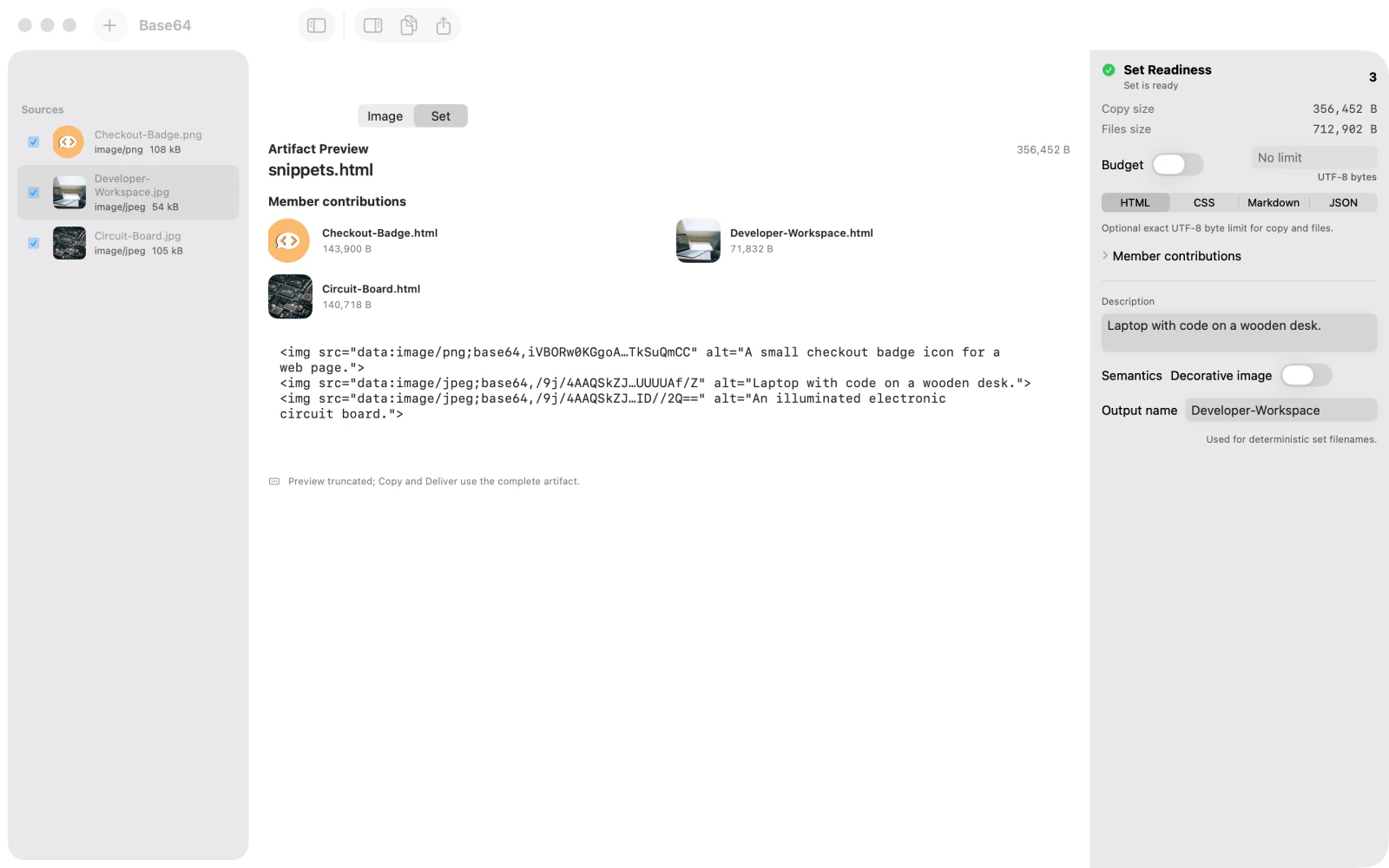
Choose Set above the preview and leave HTML selected in the output format controls. Select each entry in Sources and enter meaningful alternative text in Description. Leave Decorative image off so each description becomes an alt attribute. Confirm that Set Readiness says the set is ready, then inspect the three HTML member contributions and the combined snippets.html preview. The preview may be truncated, but the Copy and Deliver actions use the complete artifact.
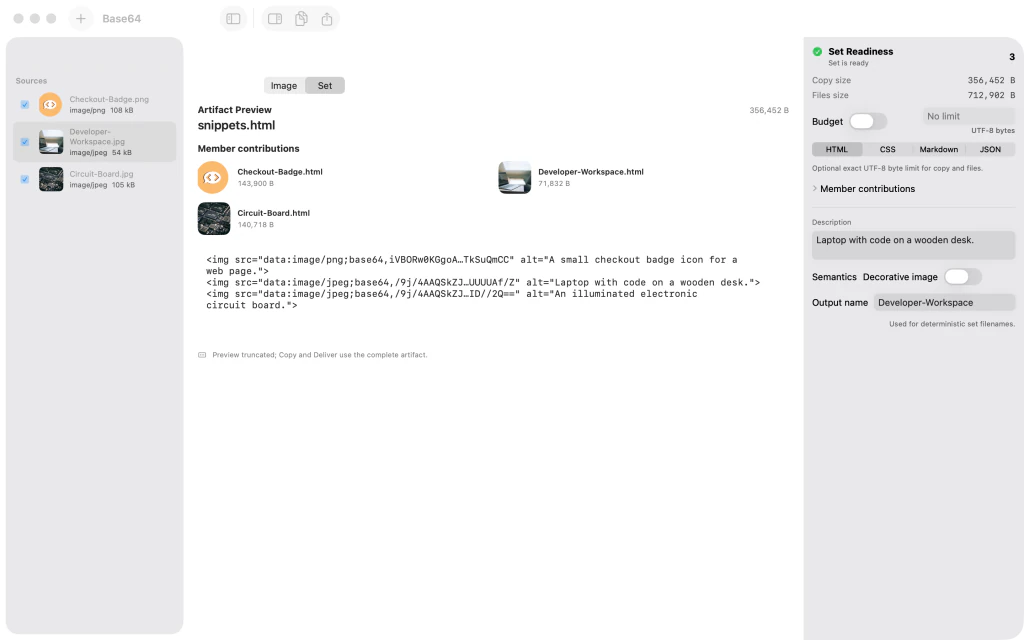
Image Base64 Encoder showing the ready HTML image set, three member snippets, and descriptive alt text within HTML image tags
Tips
Use the Image and Set tabs to compare a single image's data URI with the combined HTML output.
Each description becomes the corresponding image's alt text when Decorative image is off.
The preview may be truncated for long Base64 content; Copy and Deliver use the complete artifact.
Watch outEmbedded Base64 image data can make HTML much larger. Check the displayed copy size before sharing or embedding the output.

