 BraveCL
How to create and verify a Wi-Fi QR code on Mac
Create a Wi-Fi QR code in CodeGet, enter the network details, and verify the generated code before you share or export it.
- What you'll achieve
- You will have a Wi-Fi QR code whose network details have been checked by CodeGet before sharing or export.
- What you need
- CodeGet 3.0 for Mac.
- The Wi-Fi network name, password, and encryption type you want to encode.
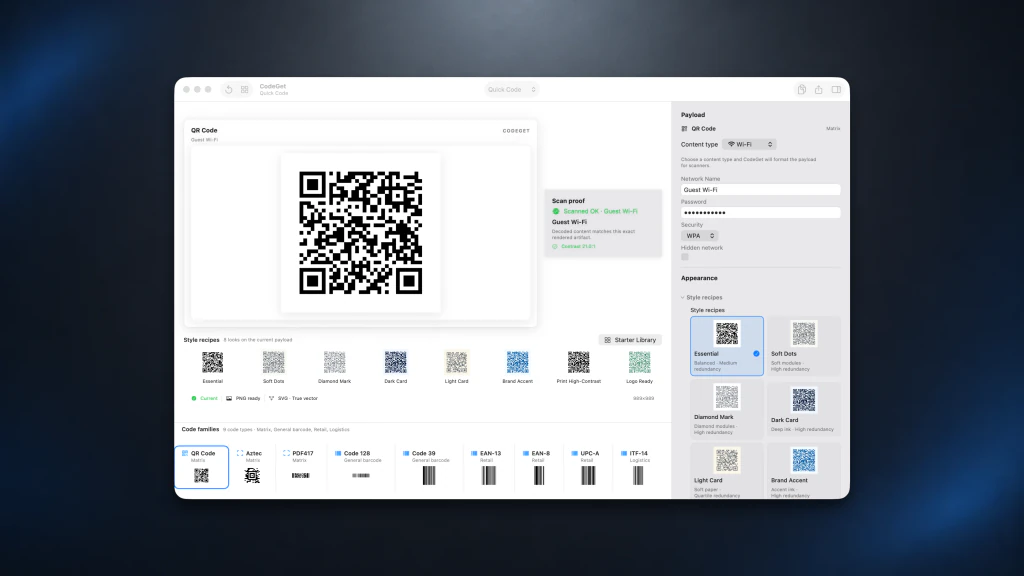
CodeGet turns Wi-Fi network details into a QR code and can check the generated code before you share it. This guide follows the app's verified Guest Wi-Fi recipe in the Quick workspace.
1.Set the Wi-Fi details
Choose Wi-Fi, enter the network name in Network Name, and confirm Wi-Fi encryption and Password match the network you want to share.

CodeGet showing the Wi-Fi fields with Guest Wi-Fi in Network Name. 2.Verify the generated QR code
Click Verify to check the generated QR code. When verification finishes, Verify is no longer shown, confirming the check completed.

CodeGet after checking the generated Wi-Fi QR code, with the verification step completed.


Tips
Confirm Wi-Fi encryption and Password match the network before you verify the code.
Use Verify after you finish editing the Wi-Fi details, before you share or export the QR code.
Watch outIf you change Network Name, Password, or Wi-Fi encryption after checking the code, run Verify again before sharing it.

