 BraveCL
How to find exact duplicate files on Mac
Scan selected Mac folders for exact duplicate files, then review duplicate groups by the space they could recover.
- What you'll achieve
- You will have a list of exact duplicate groups for your selected folders, with filenames, copy counts, and recoverable-space estimates sorted largest first.
- What you need
- Clear System - Duplicate Files version 2.0 for macOS.
- Access to the folders you want to scan. The example uses Downloads, Documents, and Desktop.

Clear System compares files across folders to find exact duplicate copies. Choose the folders you want to inspect, run the duplicate scan, and organize matches before taking any cleanup action.
1.Add Downloads to the scan
Click Choose Folders... in the Folders sidebar and select your Downloads folder. Downloads appears under Folders, and the main view shows Ready to Scan for one folder.

Clear System with Downloads added in the Folders sidebar and one folder ready to scan. 2.Include your Documents folder
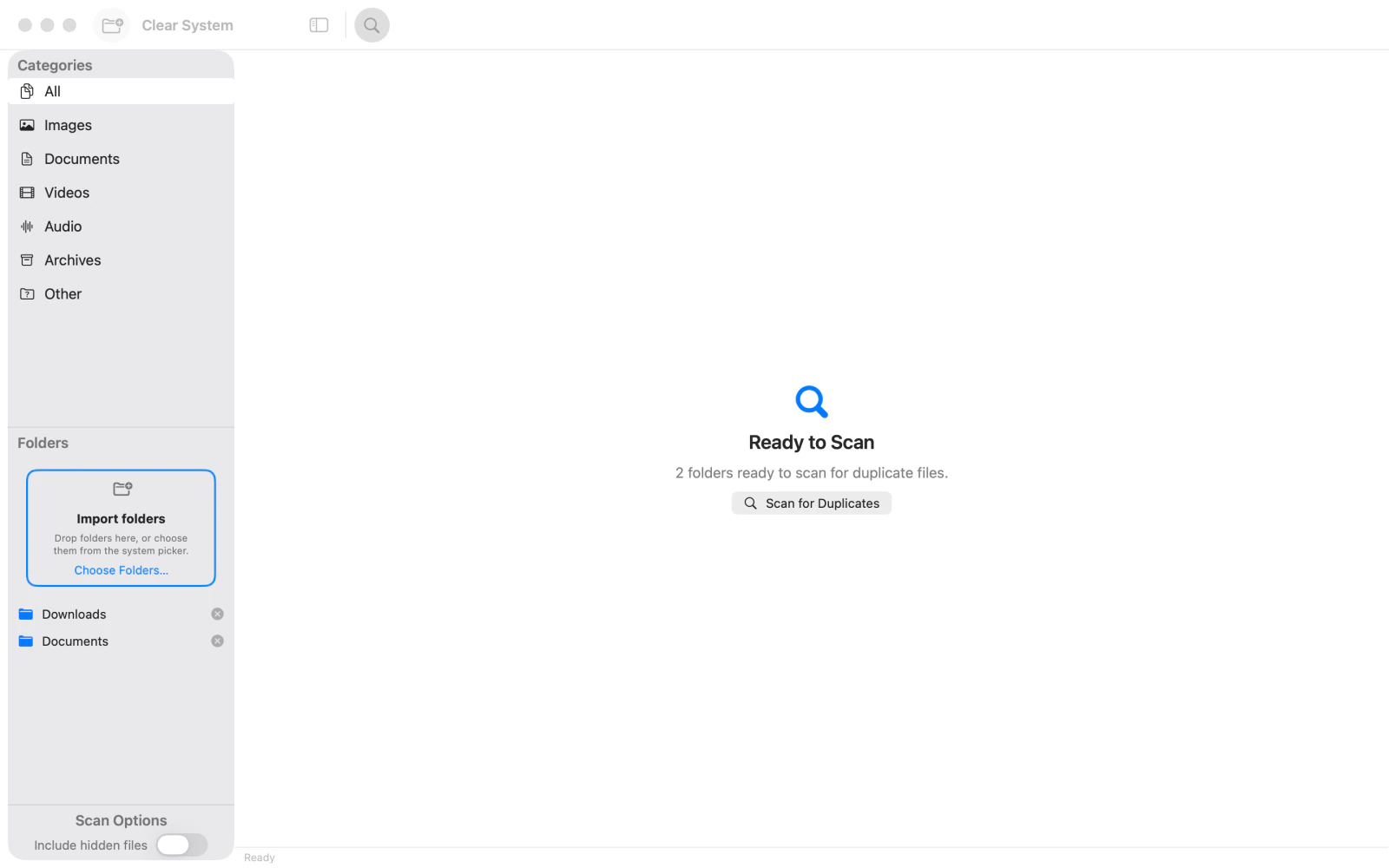
Use Choose Folders... again and select Documents. Confirm Documents appears beneath Downloads in the Folders sidebar. Two folders are ready to scan.
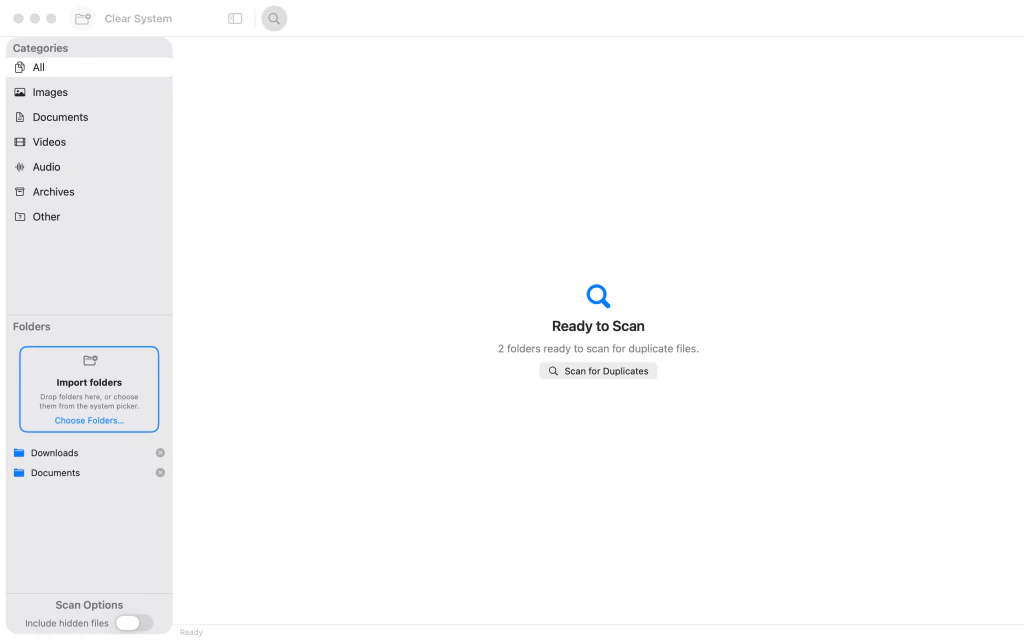
Clear System with Downloads and Documents added and two folders ready to scan. 3.Add Desktop to the scan
Use Choose Folders... to add Desktop. Confirm Downloads, Documents, and Desktop are all listed under Folders before scanning.

Clear System with Downloads, Documents and Desktop added and three folders ready to scan. 4.Scan for exact duplicate files
Click Scan for Duplicates and let the scan complete. The All category lists duplicate groups, copy counts, and recoverable-space estimates. The example finds seven groups and 827.3 MB of wasted space; your results will differ.

Clear System displaying seven duplicate groups with 827.3 MB of potential space savings. 5.Review the largest duplicate groups first
At the top of the results, select Largest First, or keep it selected if already active. Groups appear in descending order of recoverable space so you can review the biggest matches before choosing any cleanup action.

Clear System displaying duplicate results sorted Largest First, with the largest group at the top.



After the last step
This guide only scans and reviews; it does not delete or move files.
Tips
Start with folders that may contain multiple copies of the same downloads or documents.
Use the All category to review matches across file types, or choose Images or Documents to narrow results.
The app groups exact matches; files that merely look similar may not appear as duplicates.
Watch outThe amounts and duplicate counts in the screenshots come from an example folder set; your files will produce different results.
Watch outBefore taking cleanup action, review file locations and keep the copies you need.
Watch outThis guide stops at reviewing results and does not perform a Trash or deletion action.

