 BraveCL
How to choose a Christmas frame on Mac
Find a festive frame, narrow the gallery to your preferred layout, and apply it to a photo in Christmas Frames Studio on Mac.
- What you'll achieve
- Your photo is displayed inside a selected Christmas frame, and you can return to the full gallery without losing the chosen design.
- What you need
- Christmas Frames Studio for Mac, version 3.0.
- One photo you want to place in a festive frame.

Christmas Frames Studio includes 248 holiday frame designs. You can browse the gallery, search by theme, filter by layout and apply a frame to your own photo. This walkthrough uses a square, single-photo Pine Boughs design.
1.Open the frame gallery
Open Christmas Frames Studio and add a photo with Add Photo if one is not already in your card. Select Frame along the top to display the festive gallery. The preview keeps your photo visible while you browse.

The Frame gallery in Christmas Frames Studio with a holiday wreath around the example dog photo. 2.Choose the Classic Color category
Open the category menu above the gallery and choose Classic Color. The sidebar now shows classic Christmas designs rather than all 248 frames.

Classic Color category selected in the frame gallery, showing traditional Christmas designs. 3.Search for a Pine Boughs design
Type Pine Boughs in Search assets. The gallery narrows to matching holiday borders, while the canvas keeps showing the currently selected frame.

Search assets set to Pine Boughs, with five matching holiday frame designs in the gallery. 4.Filter for a square, one-photo frame
Open Filters and limit the results to a square format with one photo opening. The remaining Pine Boughs designs are suitable for a single image.

Five square one-photo Pine Boughs frames displayed beside the example photo. 5.Apply a Pine Boughs frame
Click the first Pine Boughs With design in the results. The square Christmas border replaces the previous wreath around your photo. The Photo controls on the right let you review its fit.
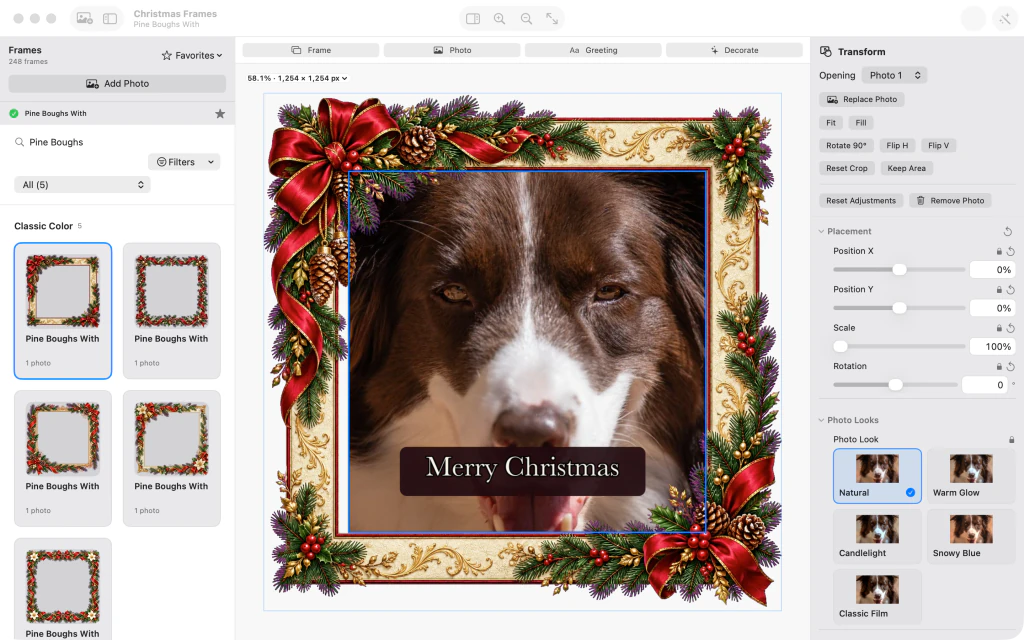
A Pine Boughs square frame selected around the dog photo with Merry Christmas greeting and Photo inspector. 6.Review the result and return to all frames
Clear Search assets and remove the gallery filters to restore all 248 designs. Your chosen Pine Boughs frame remains applied in the large preview, so you can review the result before selecting anything else.

Selected Pine Boughs frame remains applied while the full 248-frame gallery is shown again.


Tips
Try another category or clear the search field to browse beyond the five Pine Boughs matches.
The frame selection remains applied when you clear the gallery search; selecting another thumbnail changes the frame.
Watch outThe app may show a sample photo initially. Use Add Photo or Replace Photo to work with your own image before saving a result.

